How to add the Exponential Moving Average indicator in Trading View – Everything you Need to Know

How to add the Exponential Moving Average indicator in Trading View – Everything you Need to Know

In this article i’m going to give you some simple instructions on how to add the Exponential Moving Avearge (EMA) indicator in Trading View. Let’s jump straight into it!

First of all, what is Trading View?

Trading View is a chart package which you can subscribe to. It’s the best one I have ever used. I’m still using it in my own trading – any screen shots I take in the ‘Chart Analysis’ section of my blog, are taken from my Trading View chart package:

Chart analysis – Sophia Trades – Learn how to Trade the Stock Market

Trading View is extremely intuitive as a chart package. You can filter and sort your watchlists in exactly the way you would like to – adding flags, sections – anything that can help with keeping your watchlists organised.

It allows you to log into many different brokers, and I have three different accounts of my own, hooked up on Trading View.

You can set alerts and have it email you when the price reaches a certain position or when particular scenarios occur in relation to your indicators.

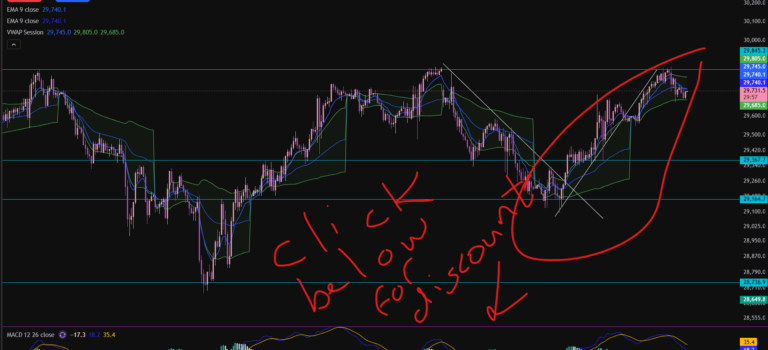
I can offer users of my blog, a discount to this amazing software – just click the link below:

Where is the Exponential Moving Average indicator in this chart package?

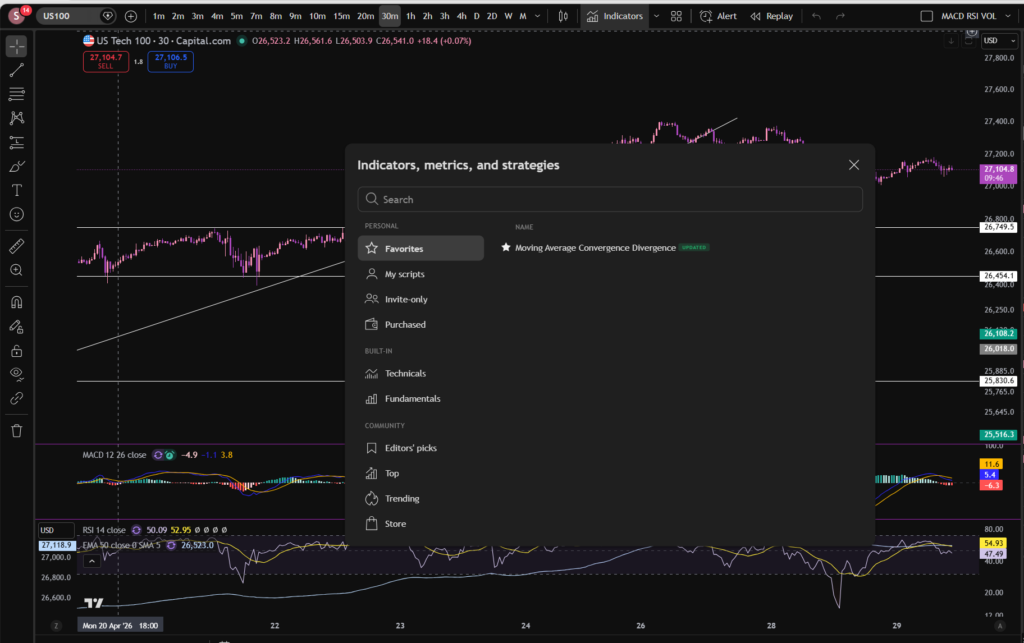
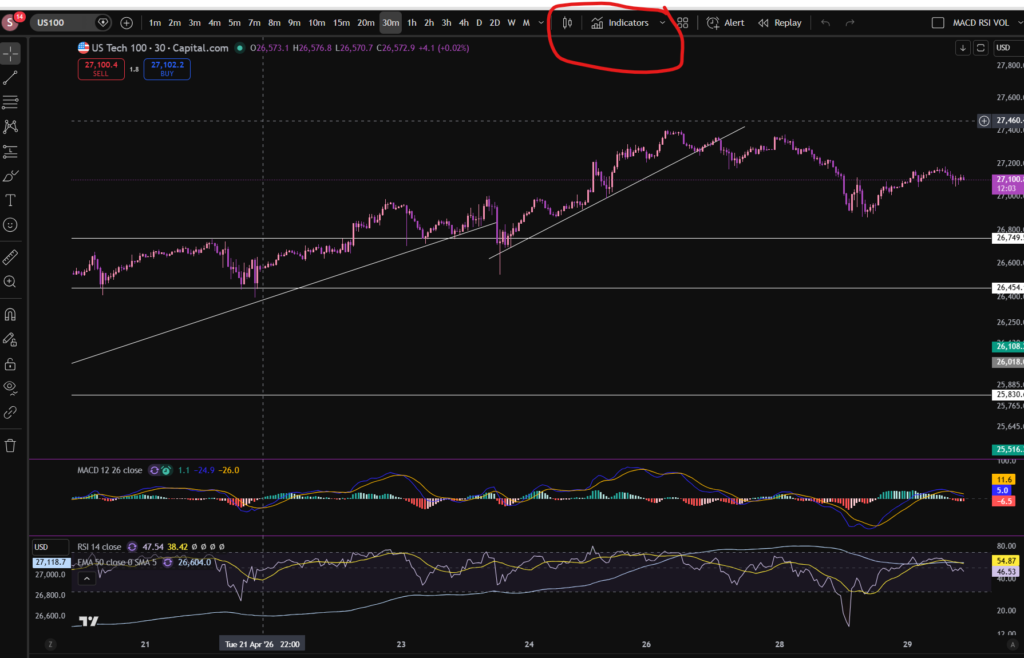
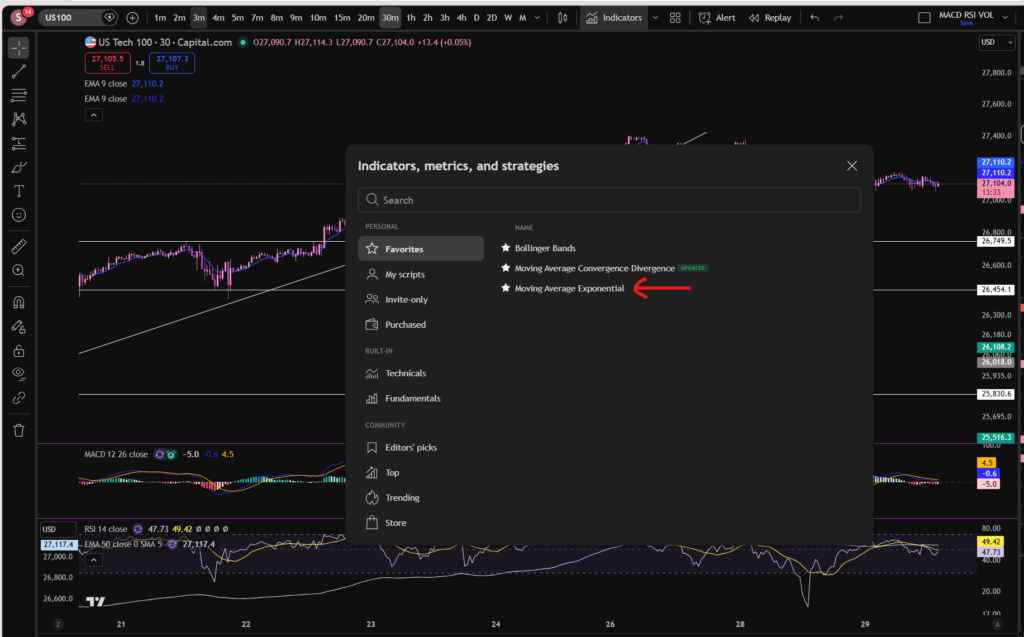
You can find the indicators by going to the indicators tab at the top of the charts. When you click on this tab, you will get a list come up of hundreds of different types of indicators. You can find the Exponential Moving Average indicator by typing in the search box, “Exponential Moving Average”. You will see the indicator appear. Note there are many different versions so you want to select the plain default version – people are building their own indicators in there so you want to avoid any that you are not familiar with:

Trading View

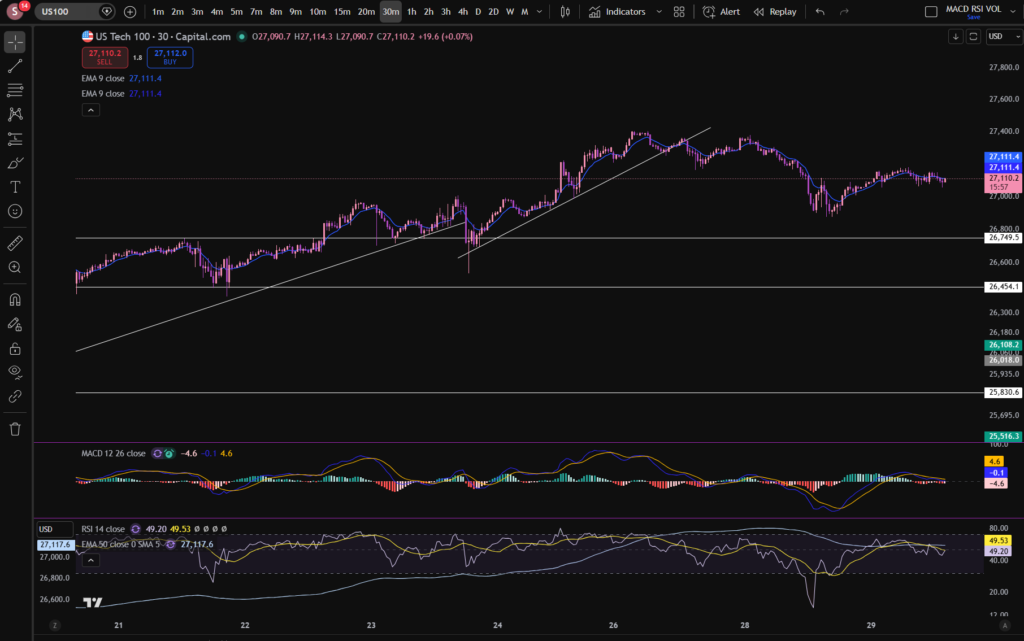
Here is what the plain default indicator looks like:

As you can see, my Exponential Moving Average indicator is in my favourites as this is one of the key indicators I use when implementing my strategy.

Once you have applied this indicator to your chart, you can tailor its settings by following the instructions in a related blog article. Please see the Trading View or Exponential Moving Average sections of the blog:

Best software reviews – Sophia Trades – Learn how to Trade the Stock Market

Technical indicators – Sophia Trades – Learn how to Trade the Stock Market

I hope you found this article helpful!

Socials:

You Tube:

Sophia Trades – YouTube

Patreon:

patreon.com/sophiatrades

Disclaimer!

Nothing on this blog should be taken as financial advice or encouragement for you to enter a trade.  You are expected to speak to a financial adviser or carry out your own due diligence before entering any positions.  Everything on this blog is made for educational purposes and to equip you with the knowledge you need to be able to make your own financial decisions.

For more great tips and advice on trading the stock market, please visit:

https://www.sophiatrades.co.uk

To watch me trade live please visit my patreon page here:

https://www.patreon.com/sophiatrades

Finally, if you would like to receive a discount on the Trading View charting software I use, please click on the relevant link here:

https://www.tradingview.com/?aff_id=117138

Please note any subscriptions taken via my affiliate link with Trading View may result in me earning a small commission.  However, I provide complete transparency on me using Trading View personally – I publish my success on the financial markets via my broker reports and any profits earned were done so by using my own Trading View subscription,  so I genuinely do recommend them and have been using the Trading View charts for many years.
How to add the Bollinger Bands indicator in Trading View – Everything you Need to Know

How to add the Bollinger Bands indicator in Trading View – Everything you Need to Know

In this article i’m going to give you some simple instructions on how to add the Bollinger Bands indicator in Trading View. Let’s jump straight into it!

First of all, what is Trading View?

Trading View is a chart package which you can subscribe to. It’s the best one I have ever used. I’m still using it in my own trading – any screen shots I take in the ‘Chart Analysis’ section of my blog, are taken from my Trading View chart package:

Chart analysis – Sophia Trades – Learn how to Trade the Stock Market

Trading View is extremely intuitive as a chart package. You can filter and sort your watchlists in exactly the way you would like to – adding flags, sections – anything that can help with keeping your watchlists organised.

It allows you to log into many different brokers, and I have three different accounts of my own, hooked up on Trading View.

You can set alerts and have it email you when the price reaches a certain position or when particular scenarios occur in relation to your indicators.

I can offer users of my blog, a discount to this amazing software – just click the link below:

Where is the Bollinger Bands indicator in this chart package?

You can find the indicators by going to the indicators tab at the top of the charts. When you click on this tab, you will get a list come up of hundreds of different types of indicators. You can find the Bollinger Bands indicator by typing in the search box, “Bollinger Band”. You will see the indicator appear. Note there are many different versions so you want to select the plain default version – people are building their own indicators in there so you want to avoid any that you are not familiar with:

Trading View

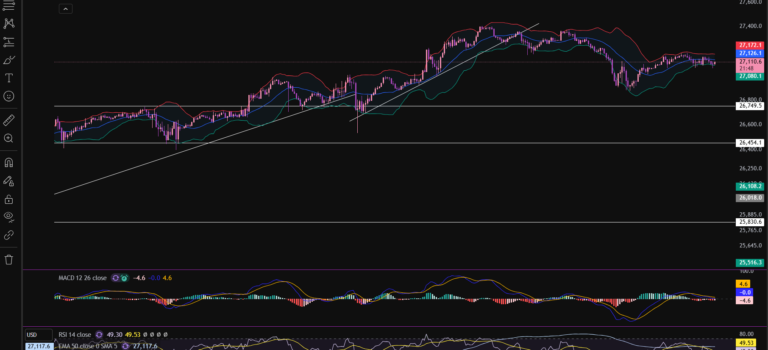
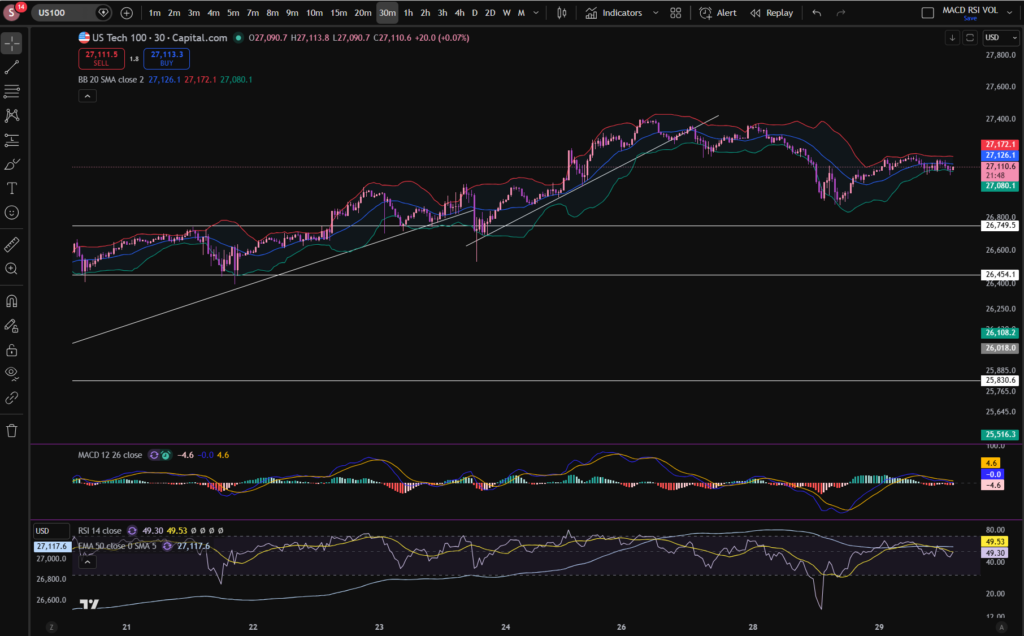
Here is what the plain default indicator looks like:

As you can see, my Bollinger Band indicator is in my favourites as this is one of the key indicators I use when implementing my strategy.

Once you have applied this indicator to your chart, you can tailor its settings by following the instructions in a related blog article. Please see the Trading View or Bollinger Bands sections of the blog:

Best software reviews – Sophia Trades – Learn how to Trade the Stock Market

Technical indicators – Sophia Trades – Learn how to Trade the Stock Market

I hope you found this article helpful!

Disclaimer!

Nothing on this blog should be taken as financial advice or encouragement for you to enter a trade.  You are expected to speak to a financial adviser or carry out your own due diligence before entering any positions.  Everything on this blog is made for educational purposes and to equip you with the knowledge you need to be able to make your own financial decisions.

For more great tips and advice on trading the stock market, please visit:

https://www.sophiatrades.co.uk

To watch me trade live please visit my patreon page here:

https://www.patreon.com/sophiatrades

Finally, if you would like to receive a discount on the Trading View charting software I use, please click on the relevant link here:

https://www.tradingview.com/?aff_id=117138

Please note any subscriptions taken via my affiliate link with Trading View may result in me earning a small commission.  However, I provide complete transparency on me using Trading View personally – I publish my success on the financial markets via my broker reports and any profits earned were done so by using my own Trading View subscription,  so I genuinely do recommend them and have been using the Trading View charts for many years.
How to Change the MACD settings on Trading View

How to Change the MACD settings on Trading View

In this article i’m going to talk about how you can change the MACD settings in Trading View, to suit your trading style and strategy. I’m going to talk about the length of the MACD and signal lines, and the colours of the histogram and the lines. Let’s jump straight into it!

First of all, what is the MACD indicator?

‘MACD’ stands for Moving Average Convergence Divergence. It does what it says on the tin! It’s the consecutive convergence and divergence of two moving averages. I published a separate blog article, explaining how you can use the MACD indicator to make more money in your trading, linked below, so I won’t go into that here. However, I do want to explain to you how you can change the settings on the indicator.

How to change the settings on the MACD indicator in Trading View

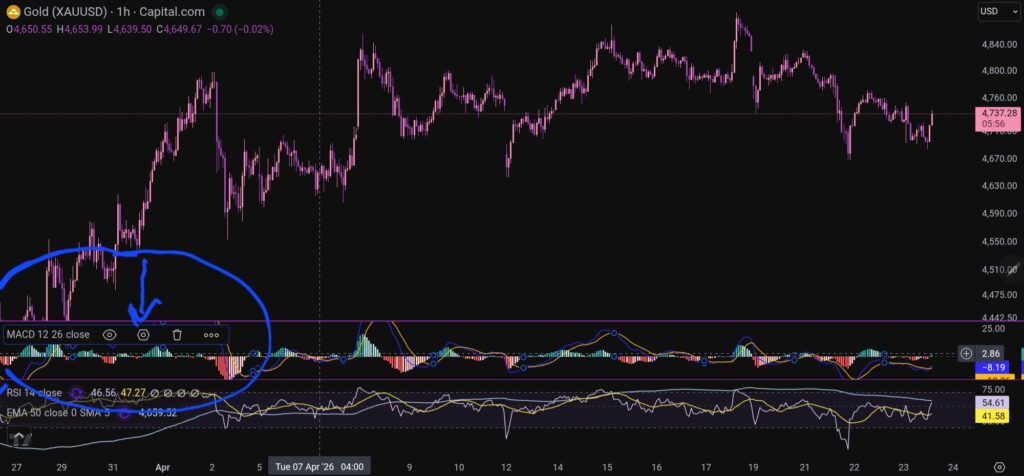
OK, so now i’m going to share with you how you can change the settings on the MACD indicator. To change the length of the moving average lines, tap anywhere on the MACD indicator, and you will see the settings menu come up – it appears on the leeft of the sceen, as shown below:

When you click on the little hexagon shape, it will bring up a menu, as follow:

Trading View

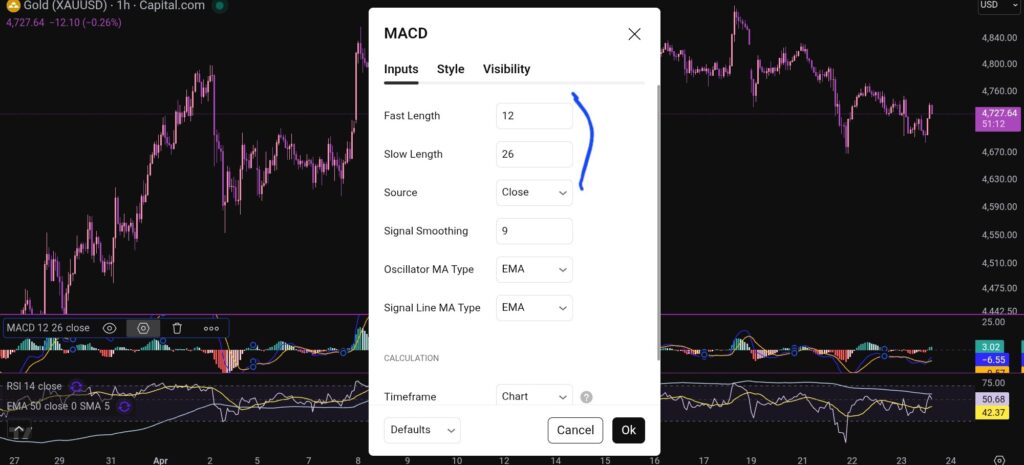
You want to click next on the ‘inputs’ tab as shown above, and you will see this screen next:

Trading View

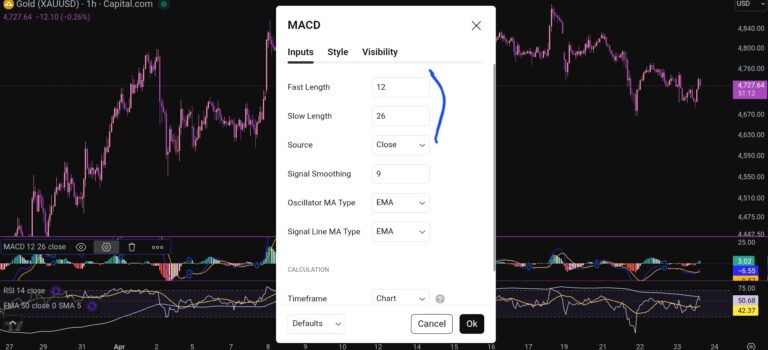
As you can see, you can alter the lengths of the moving averages here by changing the values in the field boxes.

How do you change the colour scheme of the MACD indicator?

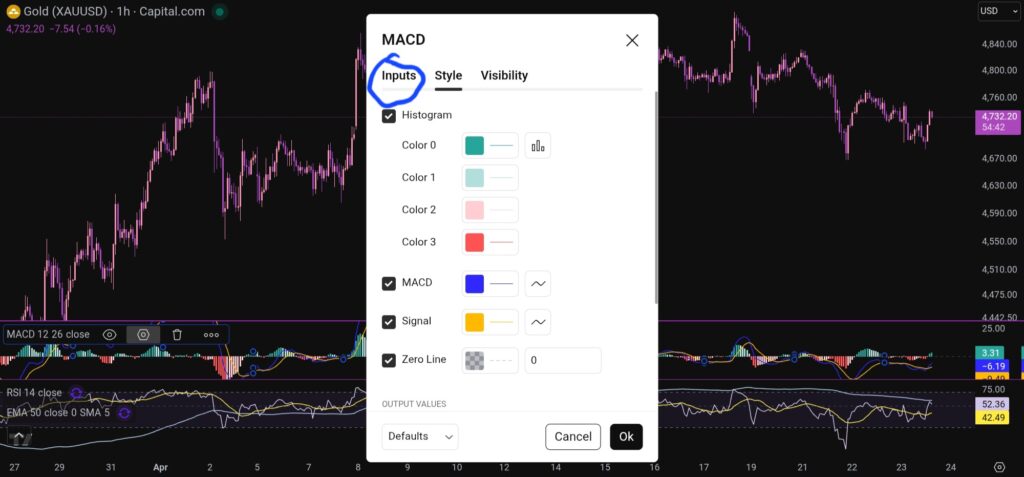
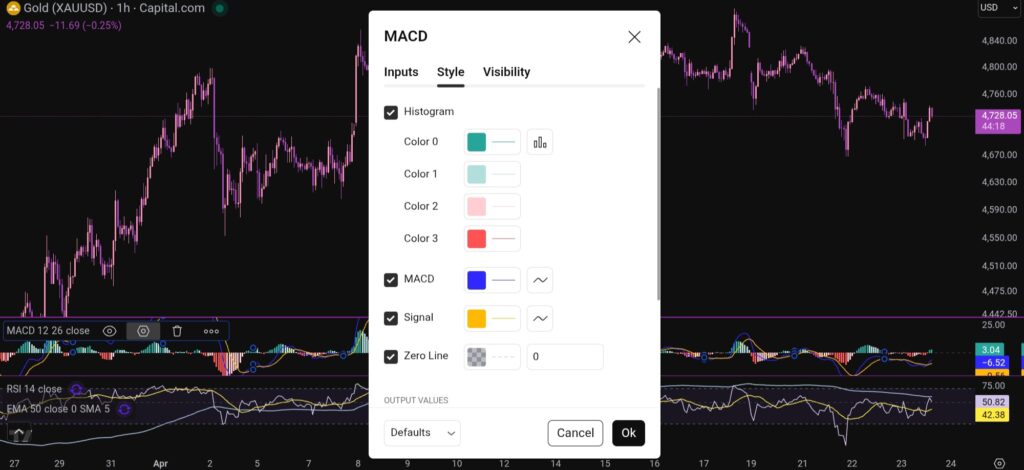
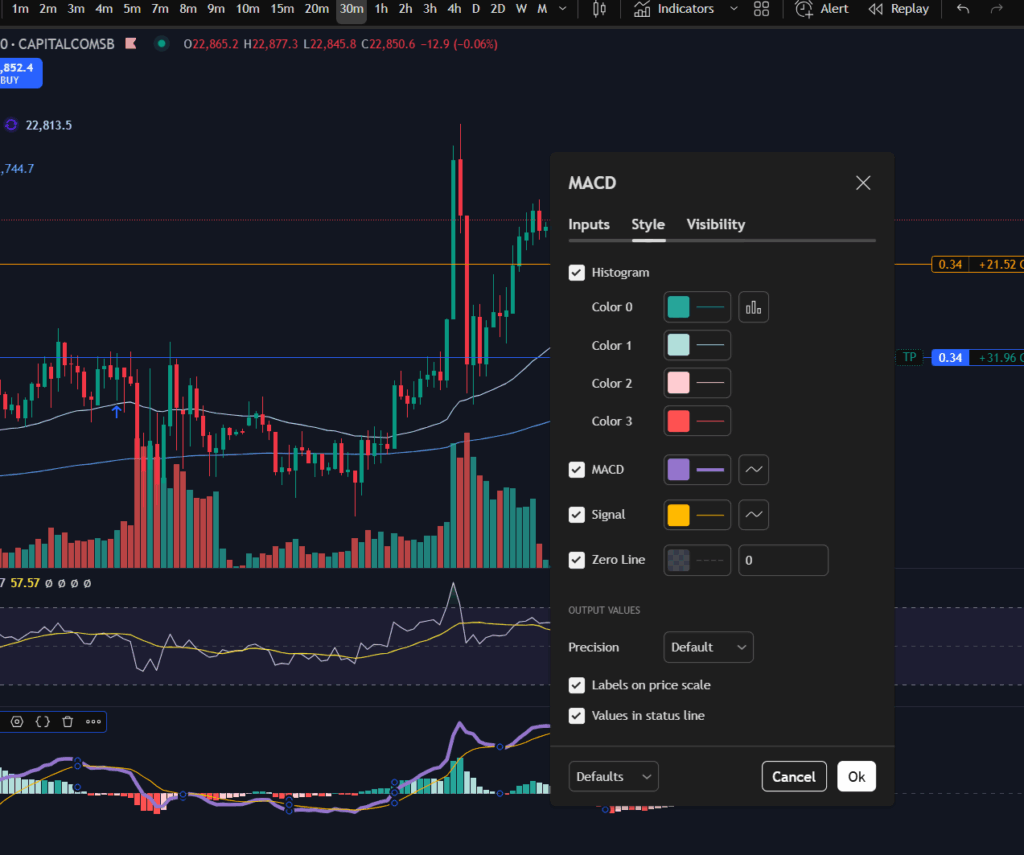
Changing the colour scheme of the MACD indicator in Trading View is just as easy as changing the moving averages. You simply click on settings with the hexagonal shape again, and the first box which comes up, is the menu where you have the option to change the colours of the MACD indicator:

Trading View

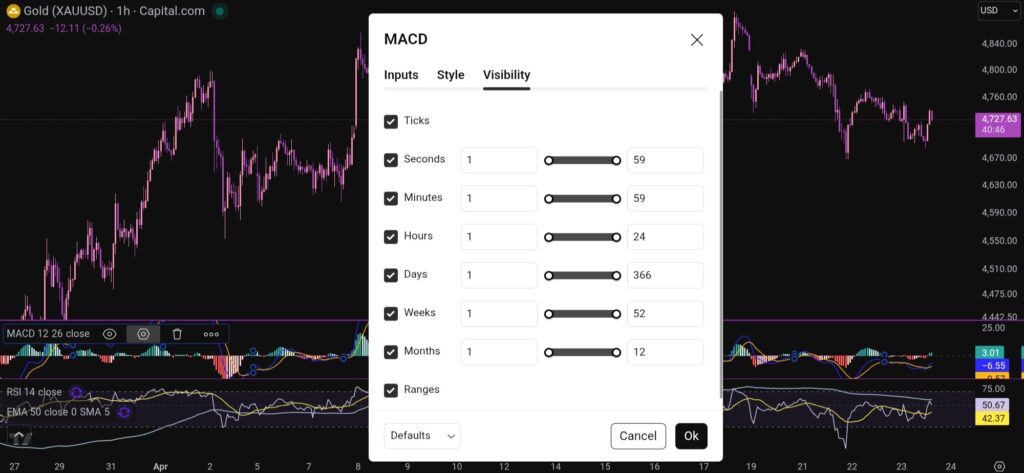
You can also change the visibility of the MACD indicator by clicking on the tab for this, and you will see this menu:

Trading View

I hope you found this article helpful!

Disclaimer!

Nothing on this blog should be taken as financial advice or encouragement for you to enter a trade.  You are expected to speak to a financial adviser or carry out your own due diligence before entering any positions.  Everything on this blog is made for educational purposes and to equip you with the knowledge you need to be able to make your own financial decisions.

For more great tips and advice on trading the stock market, please visit:

https://www.sophiatrades.co.uk

To watch me trade live please visit my patreon page here:

https://www.patreon.com/sophiatrades

Finally, if you would like to receive a discount on the Trading View charting software I use, please click on the relevant link here:

https://www.tradingview.com/?aff_id=117138

Please note any subscriptions taken via my affiliate link with Trading View may result in me earning a small commission.  However, I provide complete transparency on me using Trading View personally – I publish my success on the financial markets via my broker reports and any profits earned were done so by using my own Trading View subscription,  so I genuinely do recommend them and have been using the Trading View charts for many years.
How to add the MACD indicator in Trading View

How to add the MACD indicator in Trading View

In this article i’m going to give you some simple instructions on how to add the MACD indicator in Trading View. Let’s jump straight into it!

First of all, what is Trading View?

Trading View is a chart package which you can subscribe to. It’s the best one I have ever used. I’m still using it in my own trading – any screen shots I take in the ‘Chart Analysis’ section of my blog, are taken from my Trading View chart package:

Chart analysis – Sophia Trades – Learn how to Trade the Stock Market

Trading View is extremely intuitive as a chart package. You can filter and sort your watchlists in exactly the way you would like to – adding flags, sections – anything that can help with keeping your watchlists organised.

It allows you to log into many different brokers, and I have three different accounts of my own, hooked up on Trading View.

You can set alerts and have it email you when the price reaches a certain position or when particular scenarios occur in relation to your indicators.

I can offer users of my blog, a discount to this amazing software – just click the link below:

Where is the MACD indicator in this chart package?

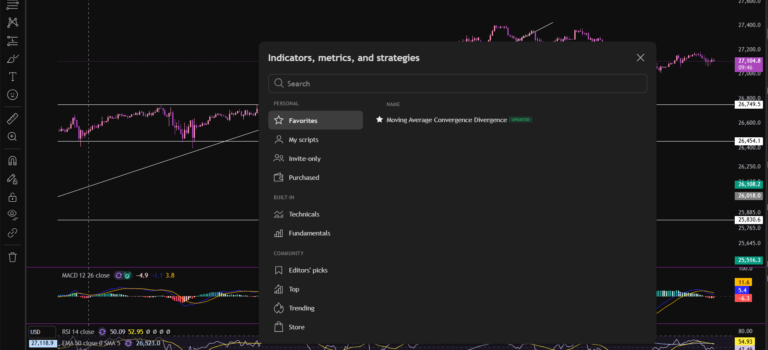
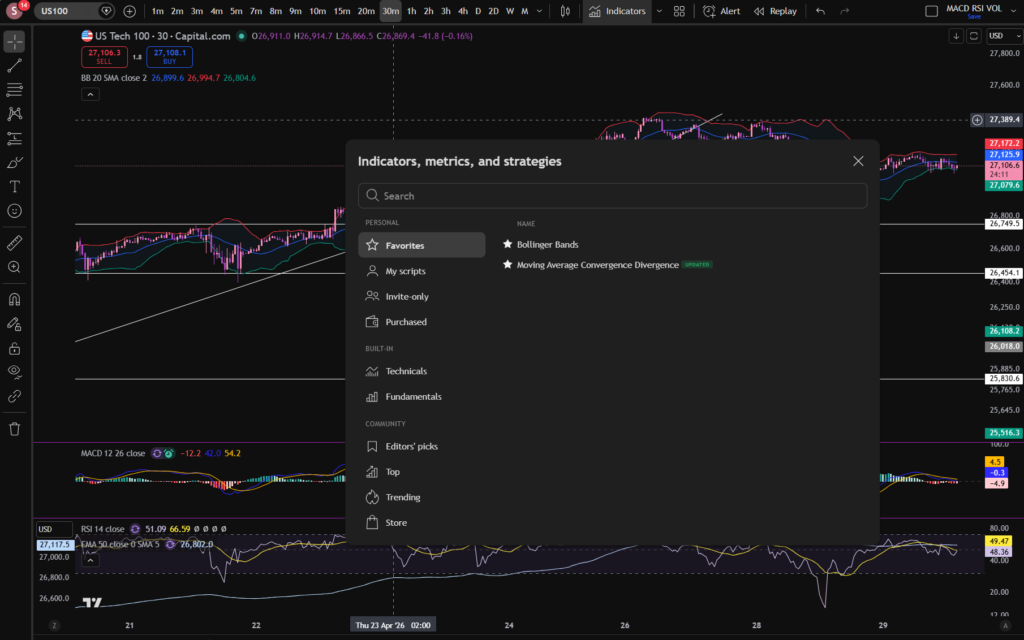
You can find the indicators by going to the indicators tab at the top of the charts. When you click on this tab, you will get a list come up of hundreds of different types of indicators. You can find the MACD indicator by typing in the search box, “Moving Average Convergence Divergence”. You will see the indicator appear. Note there are many different versions so you want to select the plain default version – people are building their own indicators in there so you want to avoid any that you are not familiar with:

Trading View

Here is what the plain default indicator looks like:

Trading View

As you can see, my MACD is in my favourites as this is one of the key indicators I use when implementing my strategy.

Once you have applied this indicator to your chart, you can tailor its settings by following the instructions in a related blog article. Please see the Trading View or MACD sections of the blog:

MACD – Sophia Trades – Learn how to Trade the Stock Market

Best software reviews – Sophia Trades – Learn how to Trade the Stock Market

I hope you found this article helpful!

Disclaimer!

Nothing on this blog should be taken as financial advice or encouragement for you to enter a trade.  You are expected to speak to a financial adviser or carry out your own due diligence before entering any positions.  Everything on this blog is made for educational purposes and to equip you with the knowledge you need to be able to make your own financial decisions.

For more great tips and advice on trading the stock market, please visit:

https://www.sophiatrades.co.uk

To watch me trade live please visit my patreon page here:

https://www.patreon.com/sophiatrades

Finally, if you would like to receive a discount on the Trading View charting software I use, please click on the relevant link here:

https://www.tradingview.com/?aff_id=117138

Please note any subscriptions taken via my affiliate link with Trading View may result in me earning a small commission.  However, I provide complete transparency on me using Trading View personally – I publish my success on the financial markets via my broker reports and any profits earned were done so by using my own Trading View subscription,  so I genuinely do recommend them and have been using the Trading View charts for many years.
How to change the colour scheme on Trading View

How to change the colour scheme on Trading View

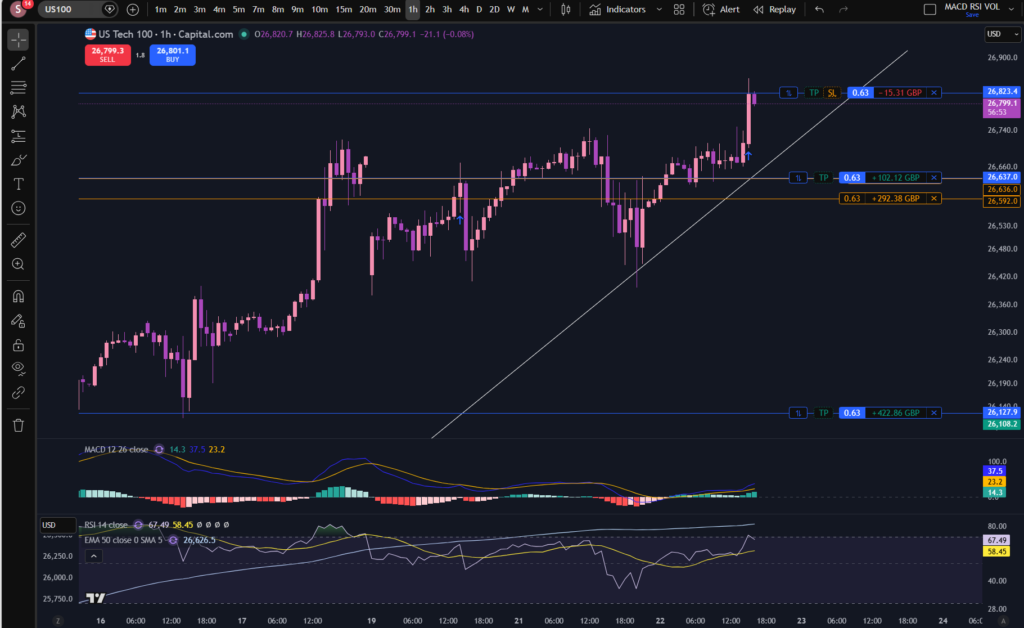
Now that i’m a consistently profitable trader (as you can see below, i’m up £500 on the NASDAQ today, currently), I have time to think about very important issues, such as how to change the colour scheme on Trading View, to some girly pink and purple tones 🙂 As you can see below, I have applied these types of colours to my chart. I’m also using dark mode, which I prepared a separate blog about – linked below. Let’s take a look at how this can be achieved…

change the colour scheme on trading view

How to change the colour scheme on Trading View – first up, dark mode…

As promised above, here is a separate blog post on how you can change your white background to dark mode. This is one of the steps needed when understanding how to change the colour scheme on Trading View, if you want to achieve the dark background in general shown in my own chart settings. This is great for people who get migraines so may be of benefit to you for that reason. I did change mine for this reason but I also like the way it looks now 🙂

Here’s the blog post on changing to dark mode on Trading View:

How to Switch to Dark Mode in Trading View – Sophia Trades – Learn how to Trade the Stock Market

How to change the colour scheme on Trading View – the candles!

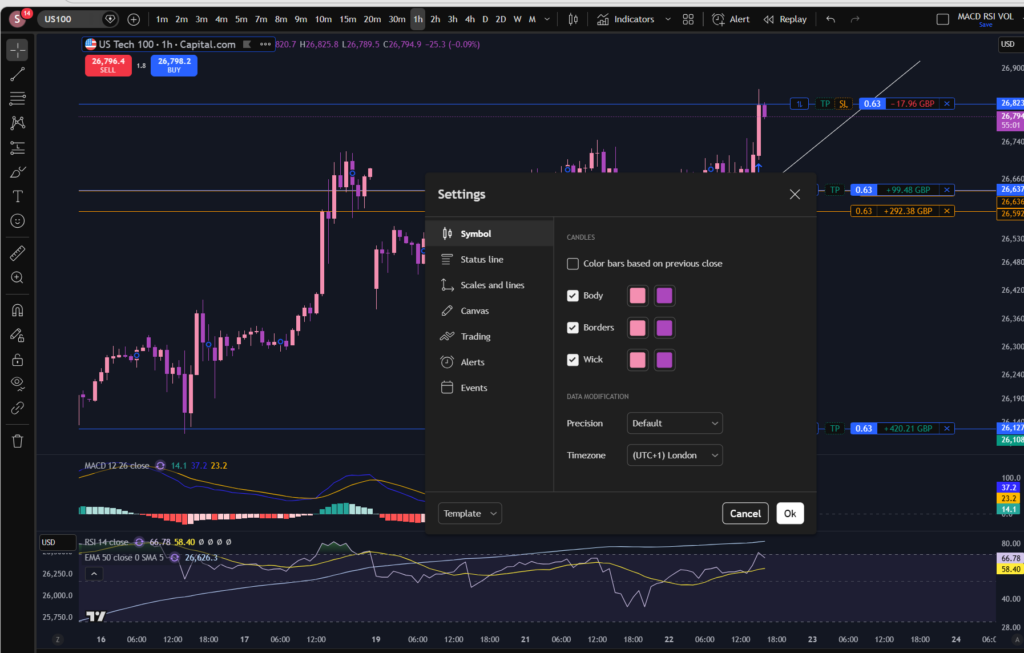
To change the colour scheme on Trading View and specifically the candles, you need to right click on the candles themselves, and Trading View will bring up the option table below where you can go in and select different colours. It’s that simple.

change the colour scheme on trading view

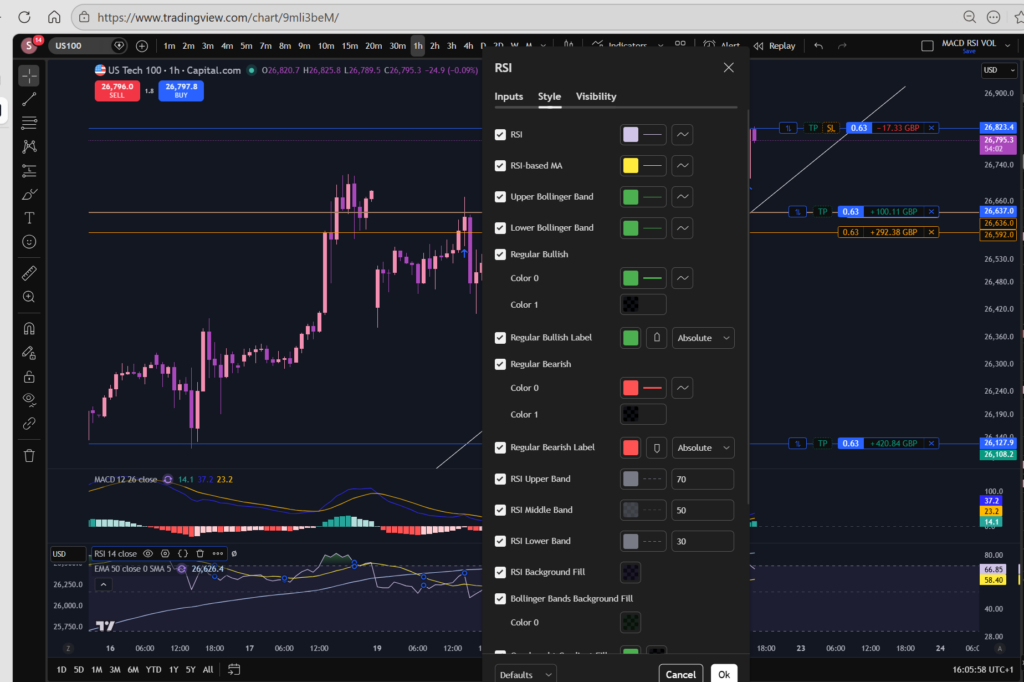
How to change the colour of the RSI on Trading View

As with changing the colour of the candles in Trading View, you can also change the colour scheme in Trading View by changing the colours of other indicators, such as the RSI indicator. If you have switched to dark mode, this may be especially important, because the lines on the default settings of particular indicators, will not stand out well, without changing their colour:

change the colour scheme on trading view

Again, you right click and it brings up the options. You can see i’ve selected a pinky purple colour for the RSI indicator, at the top of this screen shot. In fact, many of the indicators are changed in the same way – by right clicking. Trading View is highly intuitive in this way which is what I love about it.

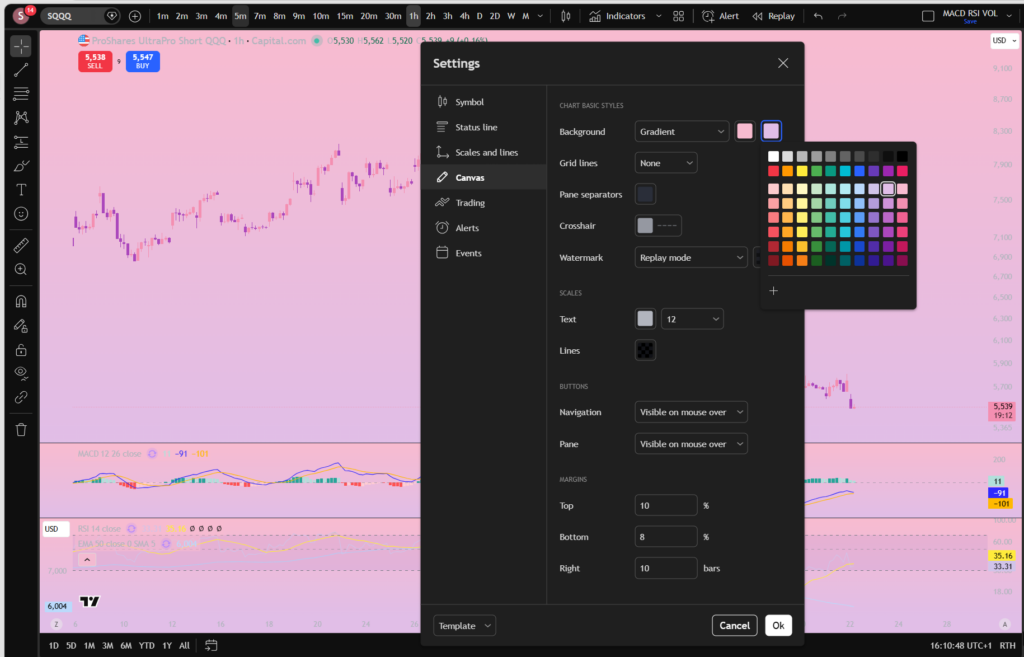
What about the background? Can you change to a completely different colour?

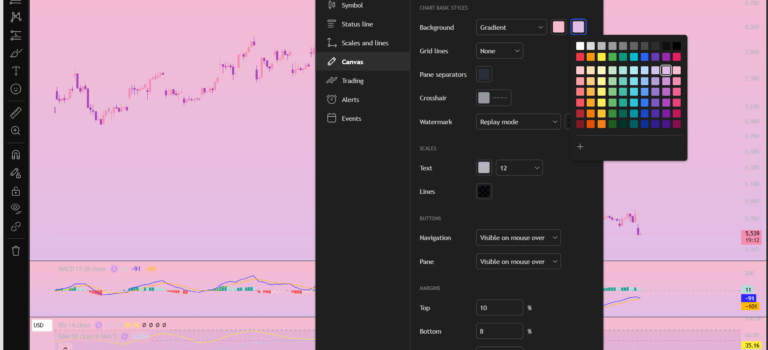
Again, right click the ‘background’ and go to settings. You will find background listed at the top – I have now selected a gradient finish in pink and mauve.

change the colour scheme on trading view

So there you have it! You can completely transform the Trading View platform to suit you own trading style.

I hope you found this article helpful!

Disclaimer!

Nothing on this blog should be taken as financial advice or encouragement for you to enter a trade.  You are expected to speak to a financial adviser or carry out your own due diligence before entering any positions.  Everything on this blog is made for educational purposes and to equip you with the knowledge you need to be able to make your own financial decisions.

For more great tips and advice on trading the stock market, please visit:

https://www.sophiatrades.co.uk

To watch me trade live please visit my patreon page here:

https://www.patreon.com/sophiatrades

Finally, if you would like to receive a discount on the Trading View charting software I use, please click on the relevant link here:

https://www.tradingview.com/?aff_id=117138

Please note any subscriptions taken via my affiliate link with Trading View may result in me earning a small commission.  However, I provide complete transparency on me using Trading View personally – I publish my success on the financial markets via my broker reports and any profits earned were done so by using my own Trading View subscription,  so I genuinely do recommend them and have been using the Trading View charts for many years.

How to Paper Trade on Trading View – Everything you Need to Know

How to Paper Trade on Trading View – Everything you Need to Know

In this article i’m going to explain how to paper trade on Trading View. I’m going to talk about some specific methods you can use which are extremely helpful when you are learning to be a stock market trader. These methods will mean literally zero risk for your portfolio. I will also explain some of the differences which can catch new traders out, once they trade in the live markets and find it feels different to paper trading. Let’s jump straight into it!

First of all, what is paper trading?

In order to understand how to paper trade on Trading View, it’s a good idea to get a firm foundation on what paper trading is, how it is used, its benefits and drawbacks.

Paper trading is used to test a strategy or idea for making money in the stock markets without risk to your funds. You can place ‘paper’ trades, meaning you are not using real money on the trades and then monitor whether they would have been a win or loss. You can accumulate this knowledge by applying the set up rules of your entry and exit points, over and over, to see whether, in the long term, the plan will end up making money. There are different ways to paper trade. It’s referred to as paper trading because some people literally have a note book and note down their planned entry points, and exit points, monitor the price and see whether it goes to target or their proposed stop loss position.

Another way to paper trade, and perhaps an easier way, is to use chart software, such as Trading View.

How to Paper Trade on Trading View

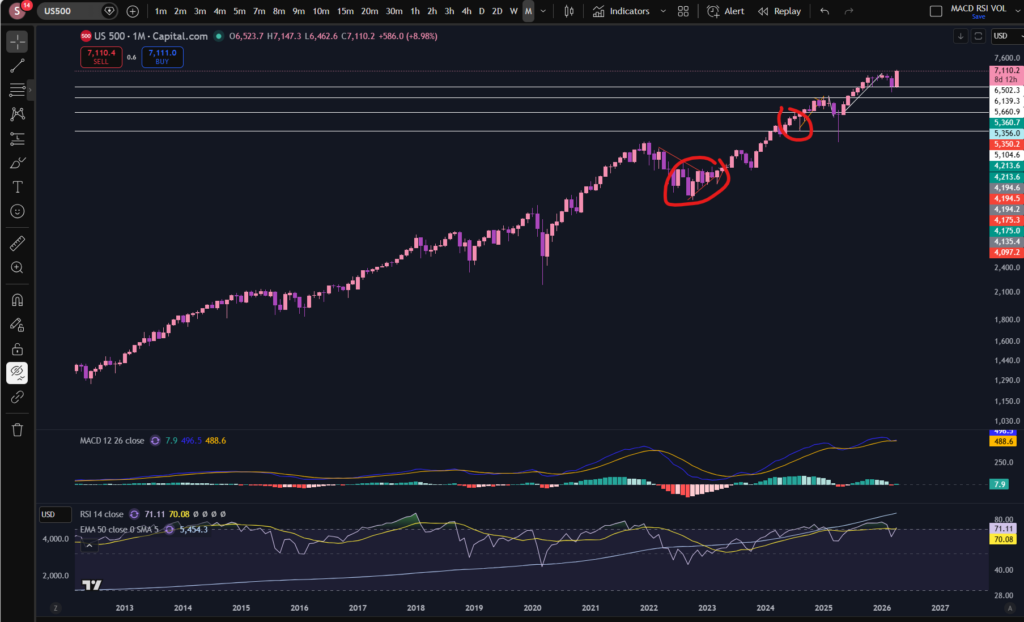
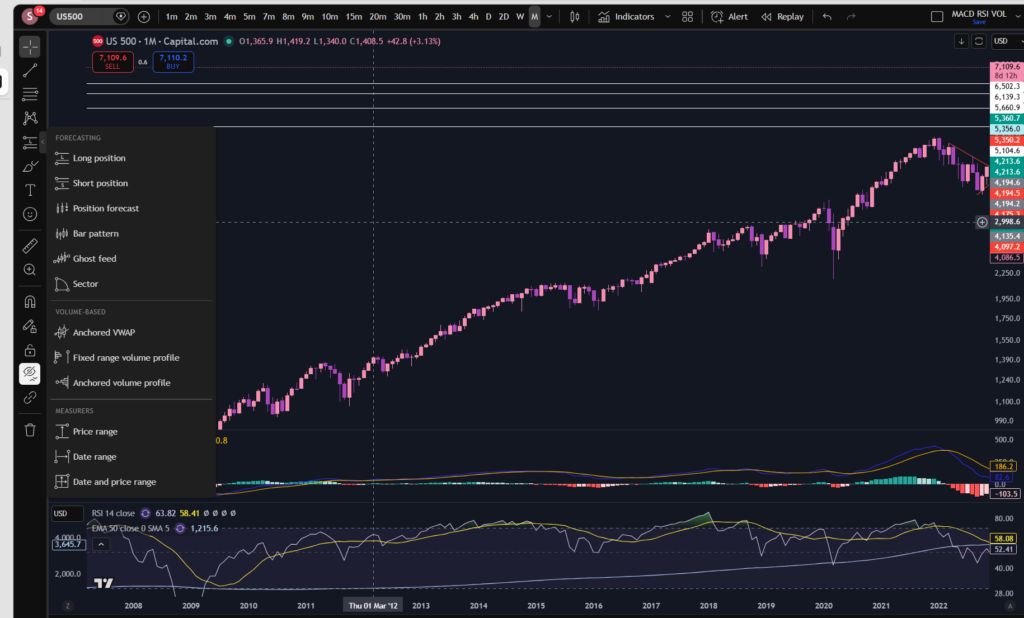
One way of learning how to paper trade on Trading View, is to use the alerts feature and the trade planning tool. Allow me to demonstrate how to paper trade on trading view, using this method… Let’s take the S&P 500 chart in Trading view, on the daily timeframe, as an example:

How to paper trade on trading view

Let’s say your plan is to get into this market when the price dips down on a pull back in an uptrend, and then take profit when it reaches previous highs. I’ve marked on the screen shot above, an example of this. Now, let me show you the trade planning tool which you could use at the point you are planning your trade:

How to paper trade on trading view

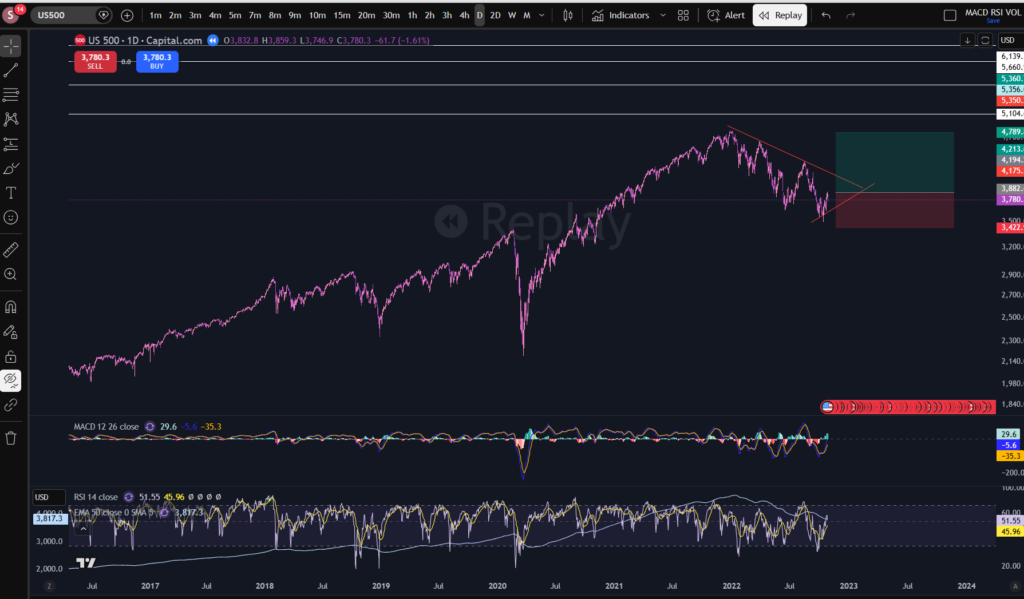
You can go to the menu on the left and pick ‘long’ position. This will bring up a little diagram on the chart where you can change its parameters to plan the entry point, take profit and stop loss. I’ve moved the chart across so that we can only see what we would see had we been planning this trade before it reached previous highs. This is what the diagram looks like on the chart:

How to paper trade on trading view

I’ve used the Trading View ‘replay’ tool to take the chart back to the entry position. I will explain the replay tool in a subsequent blog post, so watch out for this. As you can see, i’ve added the trade planning diagram for a long position, to this chart. The middle section where the red meets the green, is where the entry would be according to this type of plan. You would probably want to put a stop below the previous low of the trend, and this is where the red section extends to underneath the entry position. We said this would be a strategy where we take profit at the previous high, so this is where the green section extends to.

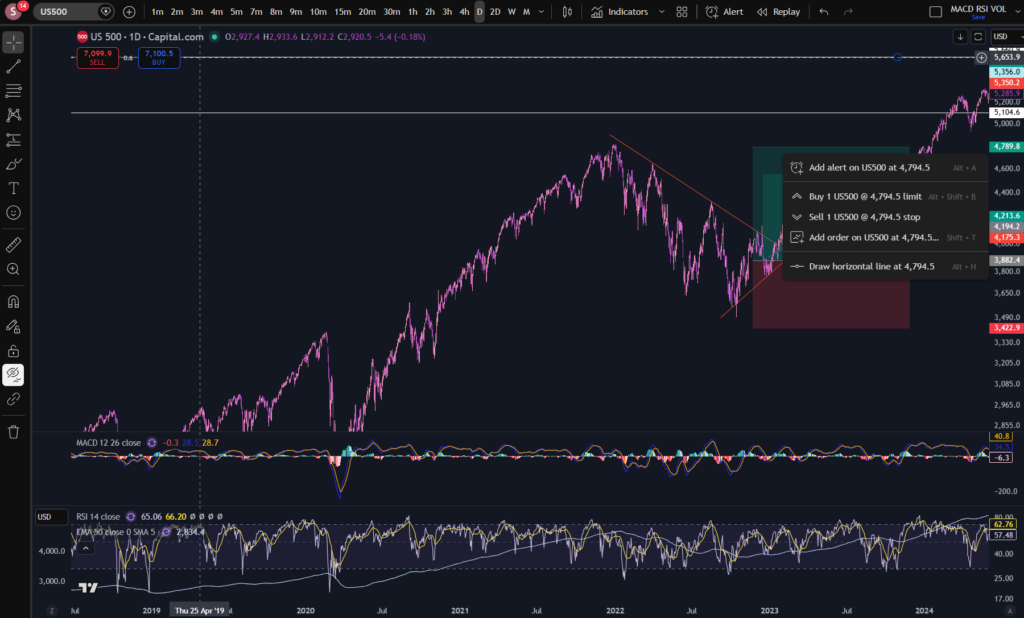
Now, what makes Trading View amazing for paper trading, is that you can set alerts at those levels marked with the diagram, as follows:

How to paper trade on trading view

I can’t show you the alert being set in replay mode – it has to be done in the live market. So I right clicked at the top of the green section, and as you can see, it has a + sign with a clock, to set an alert on the chart at the price of 4,794. Once you go to set this alert, you can tell it to email you or notify you via push notifications:

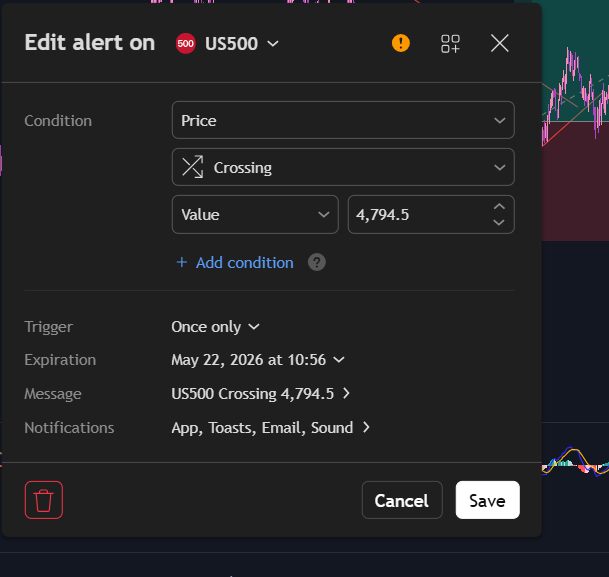
How to paper trade on trading view

You can see i’ve set alerts in the app, via email and it will ping me with a sound when the price crosses 4,794.5.

This is just one very helpful way of planning paper trades using Trading View. There is another way, however.

Trading View Paper Trading Tool

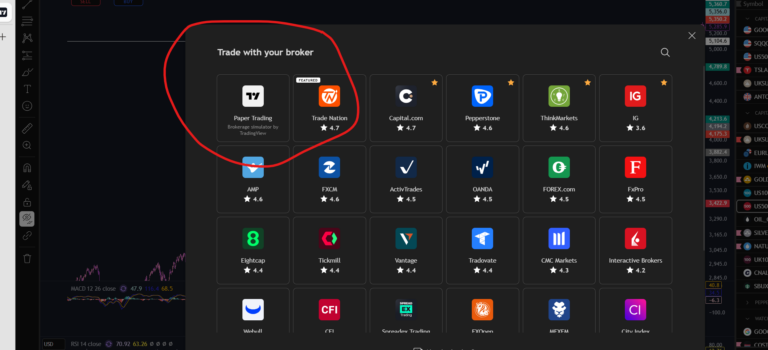
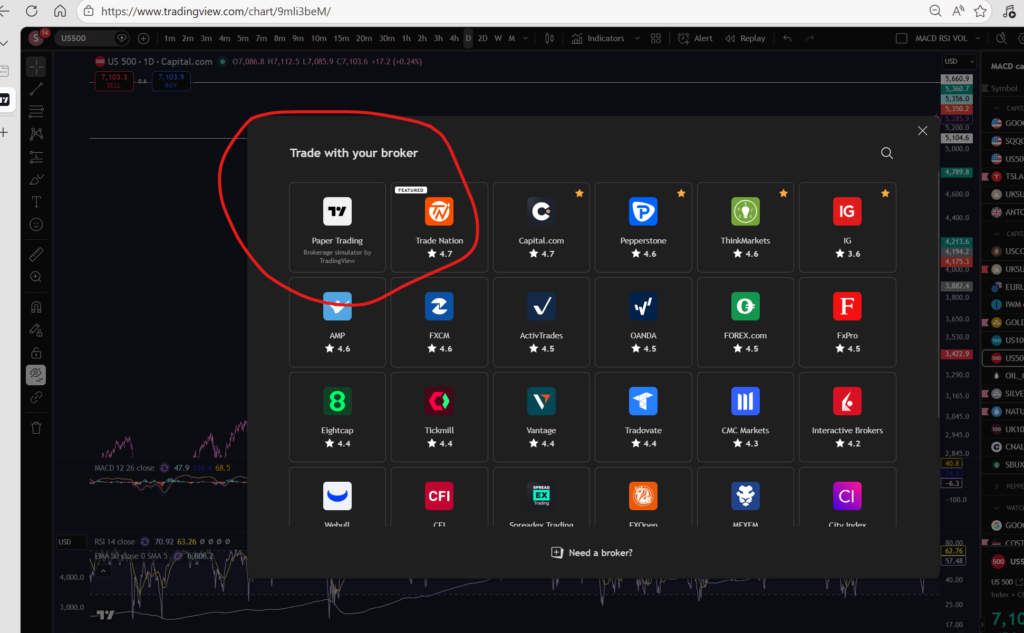
Another way to learn how to paper trade on Trading View, is to use the paper trading tool which is built into the platform. Trading View has got, built into it, a ‘paper trading’ module, accessible at the top right, when you click on Trade. It will bring up a brokers list, and you can either log into your broker account or use the Trading View module, highlighted below.

How to paper trade on trading view

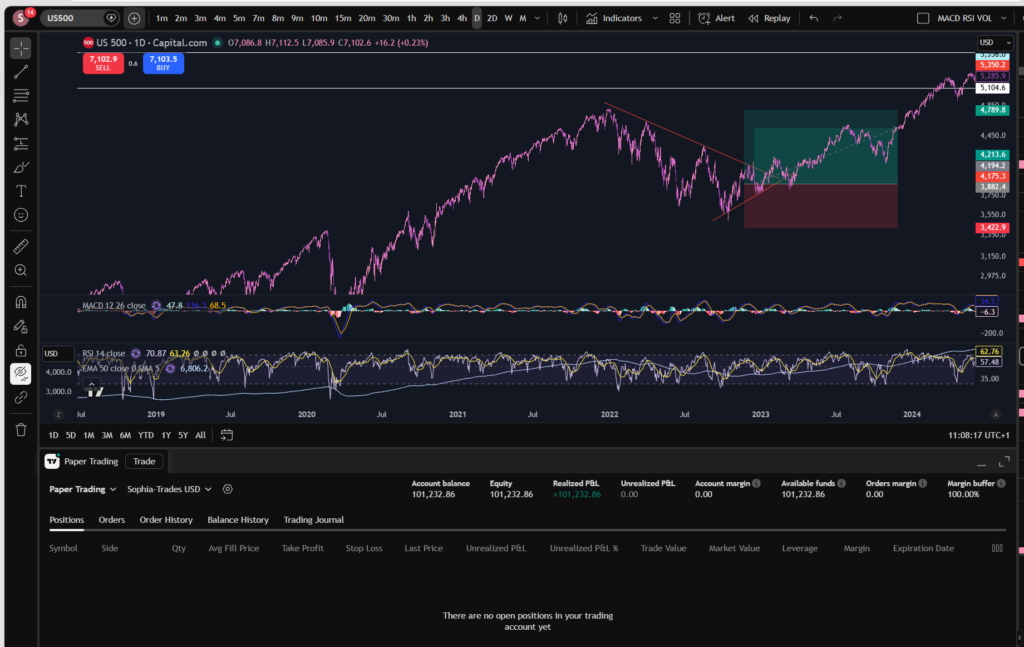
This feature is amazing. It basically records everything in your paper trading for you – like real trades. It will keep a record of your balance and whether it’s growing or not after each trade:

How to paper trade on trading view

It records the history of what has happened in the log below the chart. It shows you open ‘paper positions’ and to get into these, you simply log into paper trading via Trading View, and go to ‘buy’ and the software will execute a ‘paper’ trade for you and it will be sitting in your trade log of open positions. I believe it gives you about 100,000 to spend as starting capital. You can see i’ve got an account balance of 101,232.86 above.

I hope this helped you to understand how to paper trade on Trading View.

If you would like to see my You Tube video on paper trading, please see the linked video, below:

Disclaimer!

Nothing on this blog should be taken as financial advice or encouragement for you to enter a trade.  You are expected to speak to a financial adviser or carry out your own due diligence before entering any positions.  Everything on this blog is made for educational purposes and to equip you with the knowledge you need to be able to make your own financial decisions.

For more great tips and advice on trading the stock market, please visit:

https://www.sophiatrades.co.uk

To watch me trade live please visit my patreon page here:

https://www.patreon.com/sophiatrades

Finally, if you would like to receive a discount on the Trading View charting software I use, please click on the relevant link here:

https://www.tradingview.com/?aff_id=117138

Please note any subscriptions taken via my affiliate link with Trading View may result in me earning a small commission.  However, I provide complete transparency on me using Trading View personally – I publish my success on the financial markets via my broker reports and any profits earned were done so by using my own Trading View subscription,  so I genuinely do recommend them and have been using the Trading View charts for many years.
How to Switch to Dark Mode in Trading View

This is a super quick article to explain how to switch to dark mode in Trading View charts, to reflect the ‘dark mode’ option. This is useful for people who spend a lot of time on screens – it can be more gentle on the eyes using a dark screen. I hope you find this helpful.

Why switch to dark mode in Trading View?

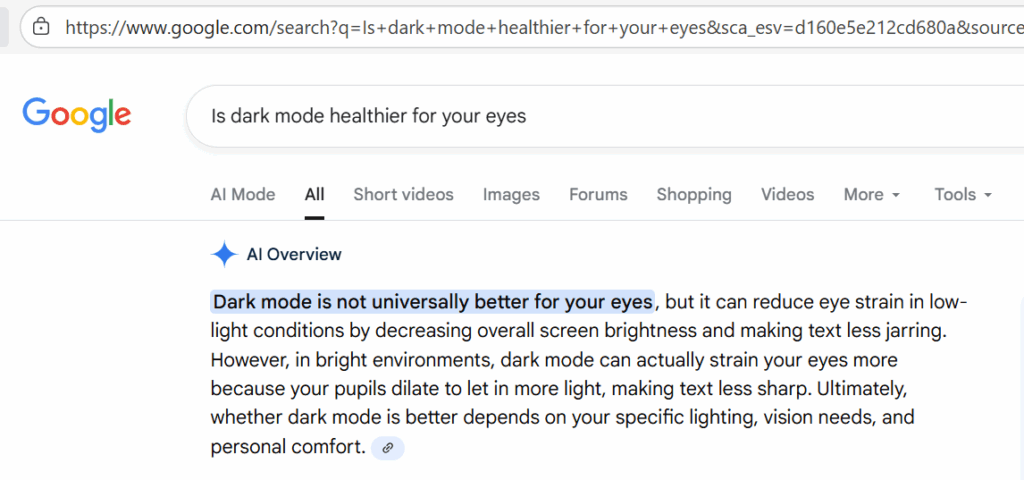
I asked Google what it had to say about this… I personally find it more comfortable, especially in the evenings, so what I found in the answer Google gave me, was interesting.

This seems to be a very personal choice, but if you have clicked on this article, the chances are, you have already decided you need dark mode, so let’s get into it!

How to switch…

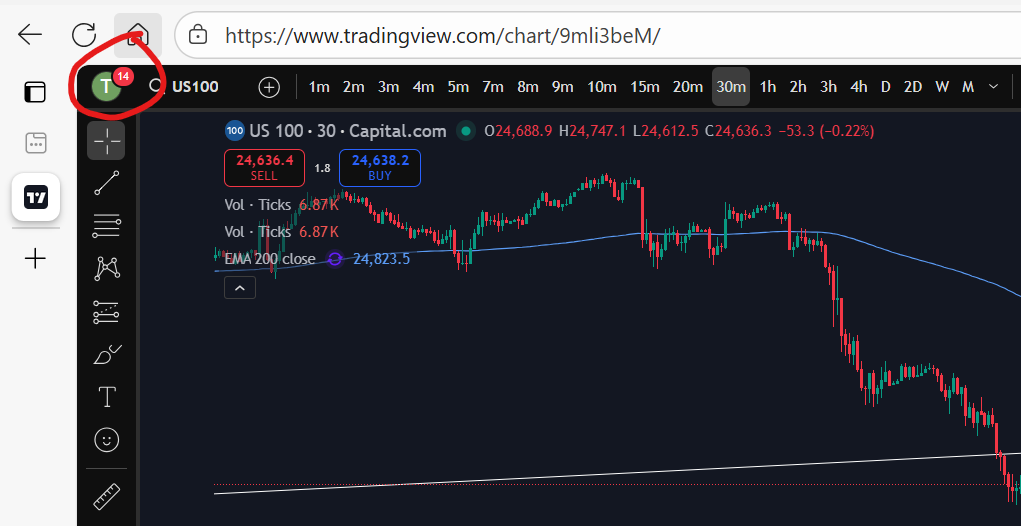
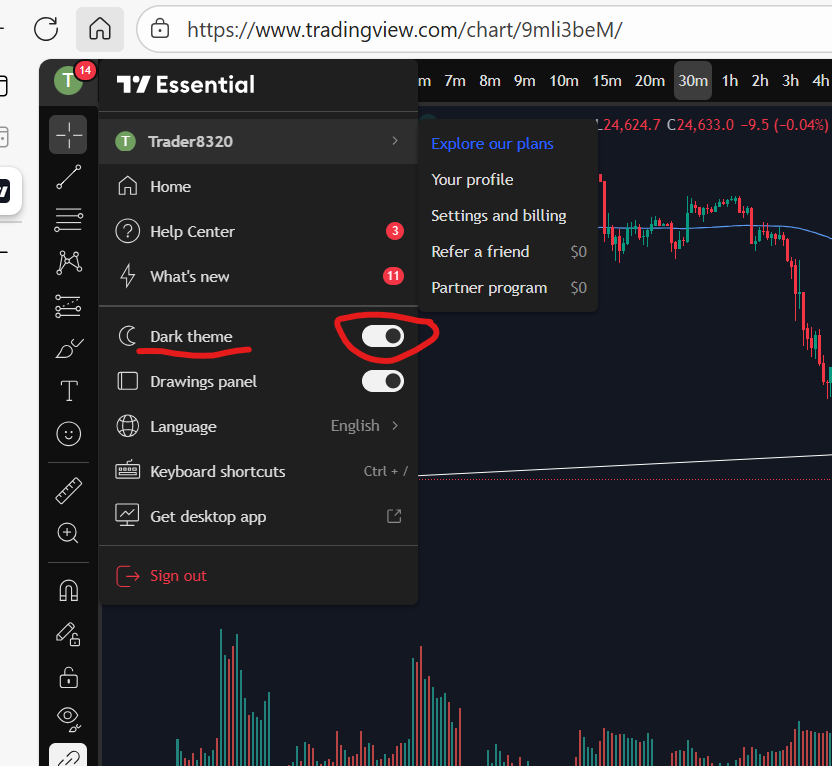
You will find that the default is for a chart to have a white background. To switch to dark mode, first go to your usual chart set up and you will see your profile icon in the top left of the screen:

If you don’t yet have trading view, I highly recommend the software. By signing up to them through my link below, you will receive a discount:

You can see here, my charts display a ‘T’ for Trader Pro – the name on my Trading View subscription. If you click on this, you will get the following display/options:

how to switch to dark mode in trading view

As you can see, there is a toggle switch, which can be toggled on or off allowing you to turn ‘dark mode’ on and off very easily.

I hope you found this article helpful!

Understand my strategy in full: https://www.patreon.com/Traderpro8320

For more great tips on trading the financial markets, please visit my blog:

https://sophiatrades.co.uk

Discount on Trading View:

https://www.tradingview.com/?aff_id=117138

My performance in the live markets:

https://sophiatrades.co.uk/category/my-performance-statistics

Finally, thank you to my existing members on Patreon, and for your likes, comments and subscribes. Happy trading!

Please note any subscriptions taken via my affiliate link with Trading View may result in me earning a small commission.

How to use technical indicators in Trading View

In this article i’m going to talk about how to use technical indicators. I will share how you can tailor some of the key indicators in Trading View. Trading View is a trading platform which is fully customisable. The paramaters and settings for the technical indicators you are likely to be using, are fully adjustable. I use Trading View for my own trading, and I feel strongly that it’s an asset to my trading and success in the financial markets. I hope you find this article helpful.

How to use technical indicators – Changing the technical settings

Let’s just jump right into how to use technical indicators in Trading View. With almost all technical indicators in Trading View, we can change the technical settings. Let’s consider the MACD (Moving Average Convergence Divergence) indicator, first.

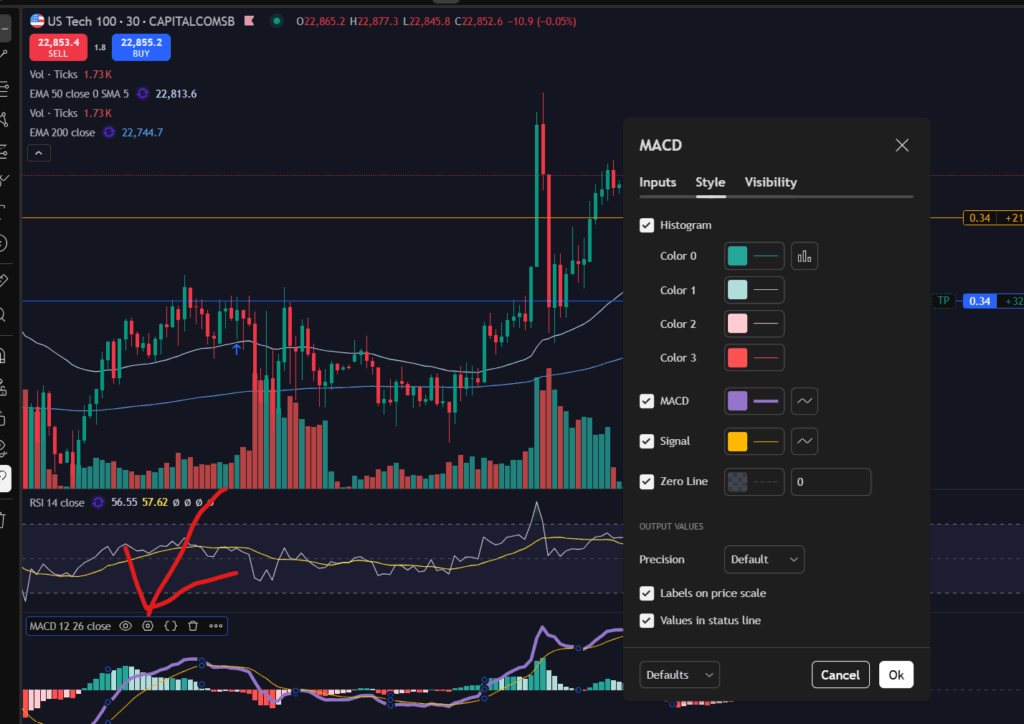
I selected the MACD line by left clicking until I could see the little circles (in blue below). This meant I had selected the indicator.

Next, click on the little hexagon shape with the circle in the middle, shown here with a red arrow:

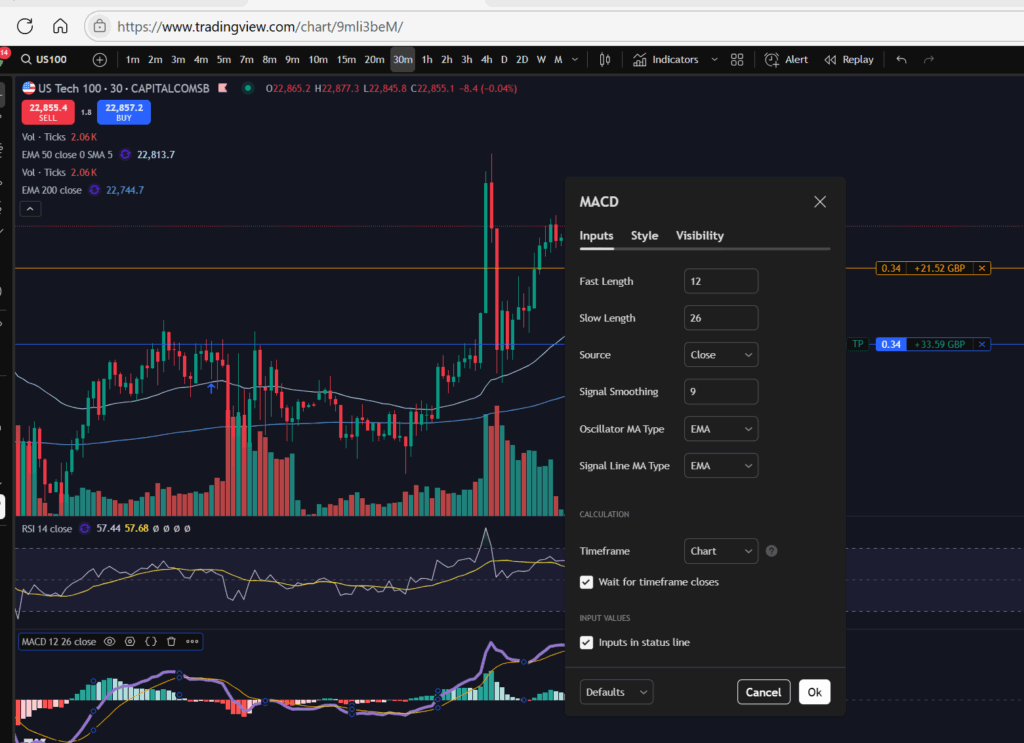
Once you click on this, the options menu for the MACD indicator will appear as shown above. You can change the ‘technical settings’ of this indicator by clicking on the ‘Inputs’ tab of this pop up menu:

The settings are set to the ‘defaults’ as shown above, but you can change the length of the periods which control the MACD and signal lines using the input boxes above.

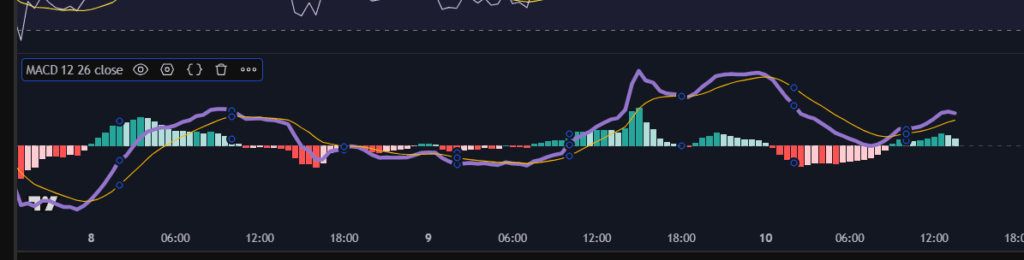
As you probably noticed from the earlier screen shot, you can also change the colours of the MCAD indicator. I like to use Dark Mode on Trading View, so I find it helpful to have a thick mauve line for the MACD indicator as I can see this more easily when using dark mode, especially as it crosses the histogram. If left to the default settings, it can be difficult to see the lines against a light histogram bar background. By the way, the histogram colours can also be changed by changing the drop downs boxes on the ‘Style’ tab of this pop up menu, too:

Once you are happy with your changes, press ‘OK’ on the menu, and the changes will be applied to your chart.

EMA lines

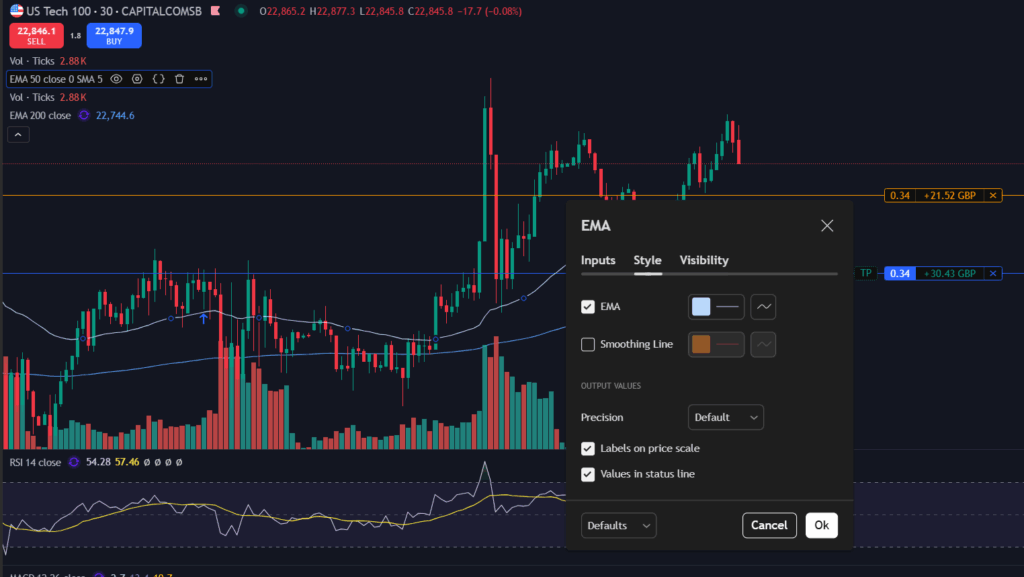
Let’s just look briefly at the EMA lines too. The period over which the average calculation is calculated can be changed in the same way as I described with the MACD indicator – click on the indicator once, to select it. Once you see the blue circles appear, click on the settings again:

How to use technical indicators

Once again, the technical inputs are on the ‘Inputs’ tab of the pop up menu:

How to use technical indicators

You can also change the colour and thickness of the EMA lines.

I hope you found this article helpful. If you would like to see the corresponding video on YouTube, please click on the link below:

For more great tips and advice on trading the stock market, please visit:

https://sophiatrades.co.uk

To watch me trade live please visit my patreon page here:

https://www.patreon.com/Traderpro8320

Finally, if you would like to receive a discount on the Trading View charting software I use, please click on the relevant link here:

https://www.tradingview.com/?aff_id=117138

Please note any subscriptions taken via my affiliate link with Trading View may result in me earning a small commission.  However, I provide complete transparency on me using Trading View personally – I publish my success on the financial markets via my broker reports and any profits earned were done so by using my own Trading View subscription,  so I genuinely do recommend them and have been using the Trading View charts for many years.
How to sort your watchlists in Trading View

How to sort your watchlists in Trading View

In this article I’m going to talk about how to sort your watchlists in Trading View. The platform is highly intuitive and I find it an invaluable resource when filtering markets and finding stocks and commodities to trade. Please read on if you would like to know more and receive a discount on the Trading View platform!

How to sort your watchlists in Trading View

Let’s jump right into how to sort your watchlists in Trading View. I’ve been using the platform Trading View for a number of years. The platform is highly intuitive – you can right click for most things and find the option you want! Let’s take a closer look at how to sort your watchlists in Trading View!

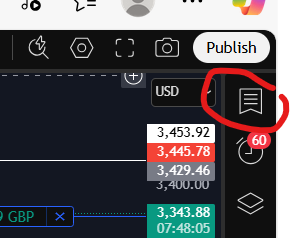
Firstly, where is the watchlist? There is a little icon which looks like a bookmark at the top right hand corner of the screen, here:

How to sort your watchlists

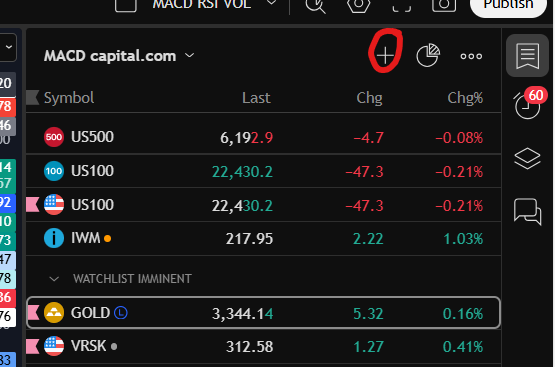
Once you click on this, it will give you your watchlist. If there are no items on your list, you can start adding them by clicking on the ‘+’ icon here:

How to sort your watchlists

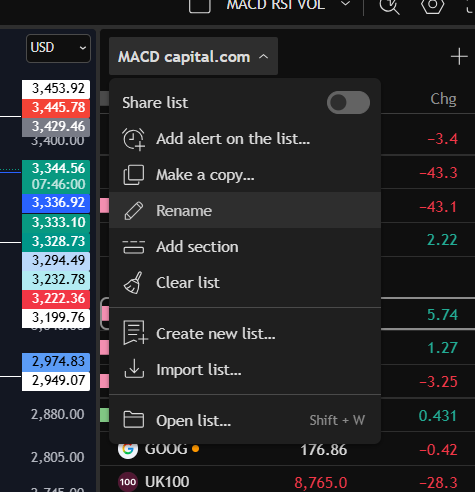
You can see, I have renamed my watchlist above as ‘MACD Capital.com’. In order to rename your watchlist, simply click on the drop down list next to the list and it will give you a number of options, including ‘rename’:

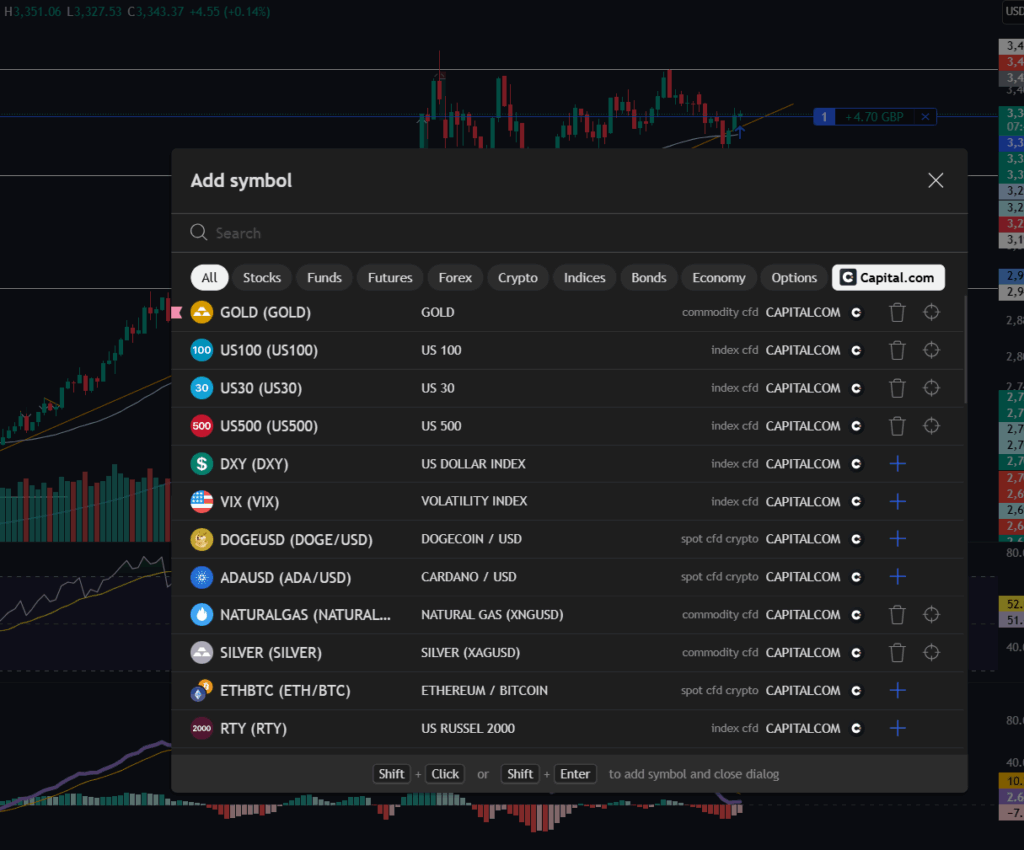
When you go to add markets to your watchlist with the ‘+’ icon, you will see the following screen:

The platform defaults to applying a filter for markets listed on Trading View with your own broker (the broker you have logged into the platform with). You can see above, that for me, it has automatically filtered the markets by the ones I can trade through Capital.com. You can remove this filter to see all markets, however.

You can search for markets in the search box and the search is highly intuitive. Searching for ‘Gold’ will give you all markets with ‘Gold’ in the name description. This may sound obvious but I have experienced frustration with other broker accounts (for example, Pepperstone) where you search for a market using ‘Gold’ and nothing comes up! YOu need to know the specific symbol (XAUUSD I believe but don’t quote me on that!).

To add a market to your own watchlist, click the ‘+’ next to the listed item and it will be added to the bottom of your watchlist.

Sorting items in your watchlist in Trading View

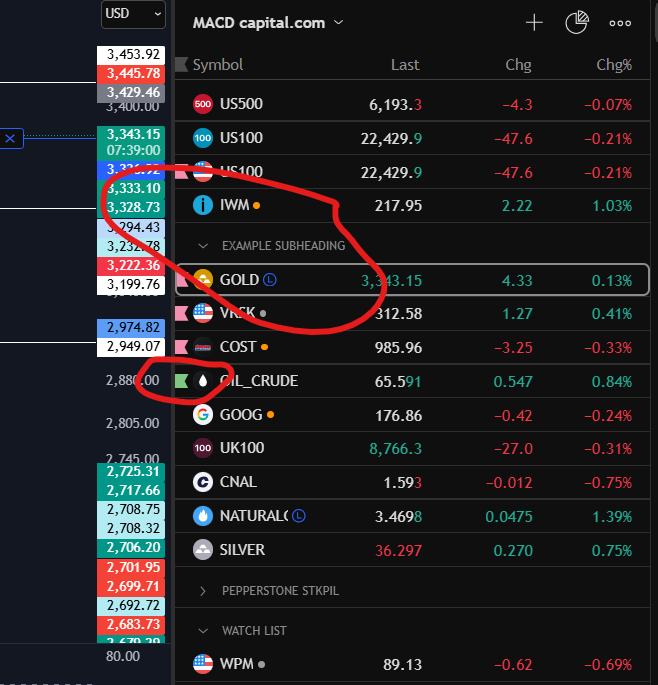
There are some really nice features you can use to sort and organise your own watchlists in trading view (and you can have multiple ones). For example, you can drag the markets into the right position using your mouse. You can right click and add subheadings which can then be collapsed or expanded. You can also add coloured flags to particular markets. Please see below screen shot for examples:

To create more than one watchlist in Trading View

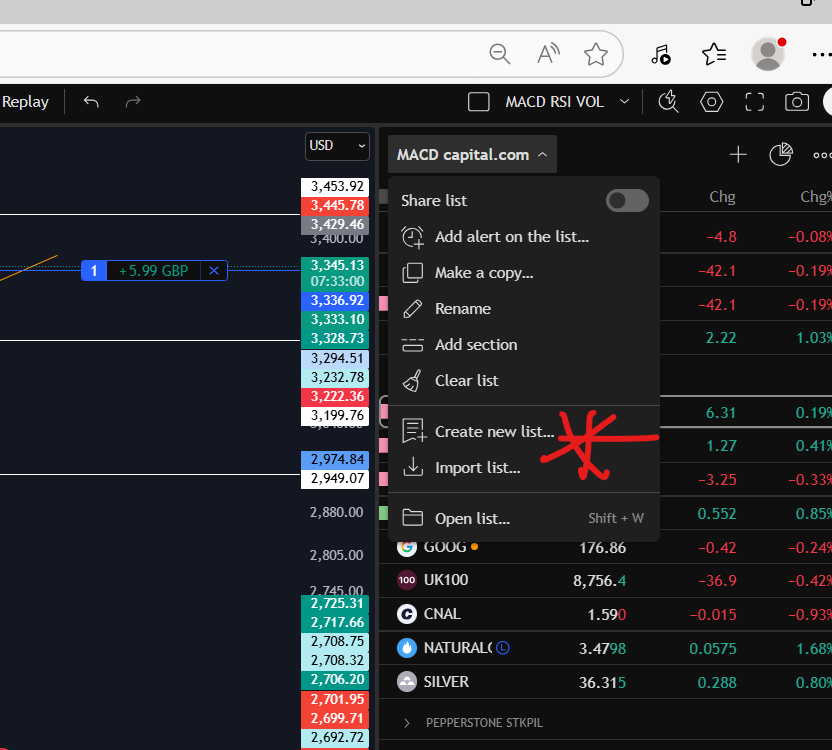
You can create multiple watchlists in Trading View and rename them as you wish. Just go to the drop down menu next to your currently viewed list and you will see a ‘create new list’ option there.

Please also see the video tour on our You Tube channel here which you may also find helpful:

How to sort your watchlists in Trading View

I hope you found this article helpful.

For more great tips and advice on trading the stock market, please visit:

https://sophiatrades.co.uk

To watch me trade live please visit my patreon page here:

https://www.patreon.com/Traderpro8320

Finally, if you would like to receive a discount on the Trading View charting software I use, please click on the relevant link here:

https://www.tradingview.com/?aff_id=117138

Please note any subscriptions taken via my affiliate link with Trading View may result in me earning a small commission.  However, I provide complete transparency on me using Trading View personally – I publish my success on the financial markets via my broker reports and any profits earned were done so by using my own Trading View subscription,  so I genuinely do recommend them and have been using the Trading View charts for many years.
Amazing! The Best Trading Platform – Trading View

Amazing! The Best Trading Platform – Trading View

In this article i’m going to talk about my experience of using Trading View as the best trading platform. I have been with this trading platform for a number of years and use the platform to execute all my entries, control my stop losses and analyse the markets. I will outline below the pros and cons of Trading View and my overall verdict on using the platform. I hope you find the article useful.
Best Trading Platform – What is Trading View?

Trading View is a platform which enables you to look at several different types of stock, commodity and other types of charts online. In terms of trading platforms, I have chosen to use and review Trading View as THE BEST trading platform. It can be logged into on the internet from anywhere, via a computer or a tablet or phone. Several different trading brokers are signed up to partner with Trading View meaning you are also able to see your open positions on the platform and move your stop loss if required on the charts.

The platform is fully customisable. It can be viewed in dark or light mode, the colours for the indicators are changable. You can arrange the components on the screen according to your preference, in a very flexible way.

Trading View customisation

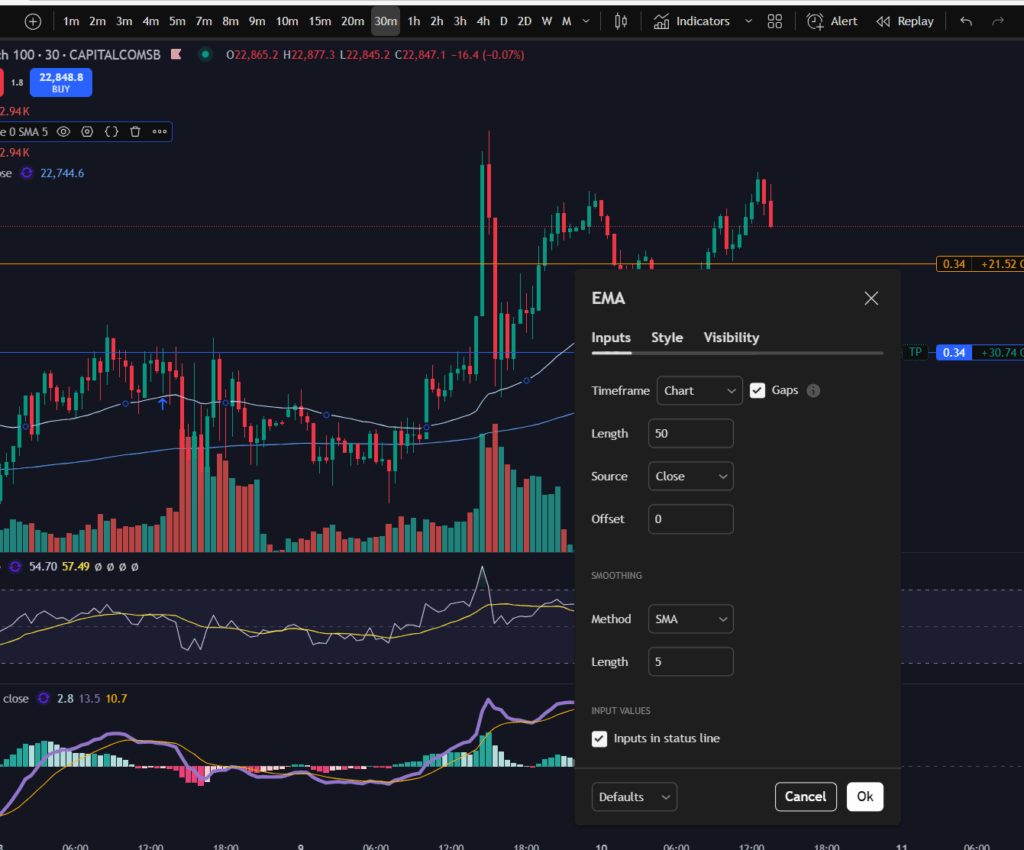
The platform can be changed from light to dark mode. Here are some screen shots of how this might look for you by changing these settings:

The moving average indicators can be changed in length and colour. The technical indicators can be repositioned vertically on the chart and swapped around. The platform has just about every type of indicator you can think of available for use. It has everything available to the user that anyone could expect in terms of a best trading platform.

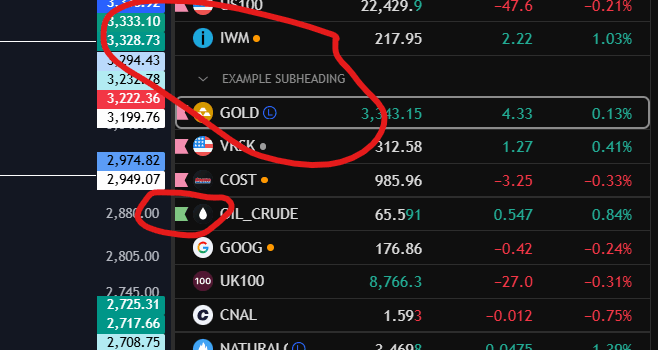
What I absolutely love about Trading View is the ease of use of its watch list. You can add a lot of markets to your watch lists, separate them with customisable headings, give them different coloured flags. The number of things you can do to customise your watchlist in Trading View is endless and I do personally find this feature extremely useful. I’ve copied a snippet below from my own watchlist – these markets are marked as ones in respect of which I am waiting on a MACD cross over. I’ve applied different coloured flags for added filtering/analysis:

Best Trading Platform

As well as the view of the charts being fully customisable and the indicators, you can also customise the alerts – for example, by setting the platform to email you when your chosen situation occurs on the chart. You can choose the type of alert – whether it alerts you once each time the situation happens, or it continues to. Example – should it tell you only once that the MACD and Signal lines have crossed each other? Or once per minute? Or once per bar close? What form should the alert take? Should it play a sound, email you? Should the alert expire after one day, one week?

Trading View – options for connecting a broker account

There are multiple options with Trading View for connecting a broker account. I have several accounts and they are all connected to Trading View. You can easily switch between them on the chart. I find this extremely useful. Most reputable trading brokers are available in a list for connecting, and their review status is given to you so you can see the better performing ones, if you would like to sign up to a new broker.

Best Trading Platform – Using the platform in a practical sense

I have been finding the platform really easy to use and personally, would never move away from using Trading View. It is extremely intuitive. For example, if you want to move your stop loss as a position moves into profit, you can just grab it on the screen and move it with your mouse or phone. You can right click on the chart and find the option you need for most situations.

When you want to add more items to your Trading View watchlist, you can go into the Trading View drive and filter markets based on your own broker.

Trading View – Best Trading Platform – Final Verdict

I absolutely love Trading View. I will never move away from using it. You can see from my You Tube channel and blog articles that I’ve been using it for a number of years for all of my own trading positions and I have found it an invaluable resource in my trading journey.

For more great tips and advice on trading the stock market, please visit:

https://sophiatrades.co.uk

To watch me trade live please visit my patreon page here:

https://www.patreon.com/Traderpro8320

Finally, if you would like to receive a discount on the Trading View charting software I use, please click on the relevant link here:

https://www.tradingview.com/?aff_id=117138

Please note any subscriptions taken via my affiliate link with Trading View may result in me earning a small commission.  However, I provide complete transparency on me using Trading View personally – I publish my success on the financial markets via my broker reports and any profits earned were done so by using my own Trading View subscription,  so I genuinely do recommend them and have been using the Trading View charts for many years.