In this article I’m going to talk about how to sort your watchlists in Trading View. The platform is highly intuitive and I find it an invaluable resource when filtering markets and finding stocks and commodities to trade. Please read on if you would like to know more and receive a discount on the Trading View platform!
How to sort your watchlists in Trading View
Let’s jump right into how to sort your watchlists in Trading View. I’ve been using the platform Trading View for a number of years. The platform is highly intuitive – you can right click for most things and find the option you want! Let’s take a closer look at how to sort your watchlists in Trading View!
Firstly, where is the watchlist? There is a little icon which looks like a bookmark at the top right hand corner of the screen, here:
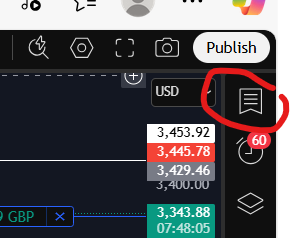
Once you click on this, it will give you your watchlist. If there are no items on your list, you can start adding them by clicking on the ‘+’ icon here:
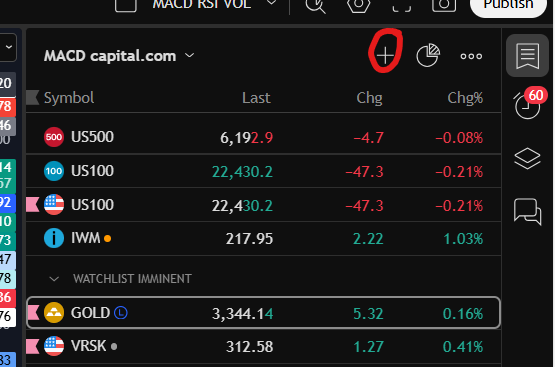
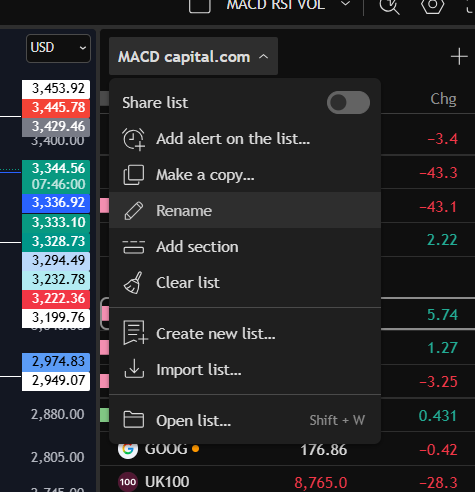
You can see, I have renamed my watchlist above as ‘MACD Capital.com’. In order to rename your watchlist, simply click on the drop down list next to the list and it will give you a number of options, including ‘rename’:
When you go to add markets to your watchlist with the ‘+’ icon, you will see the following screen:
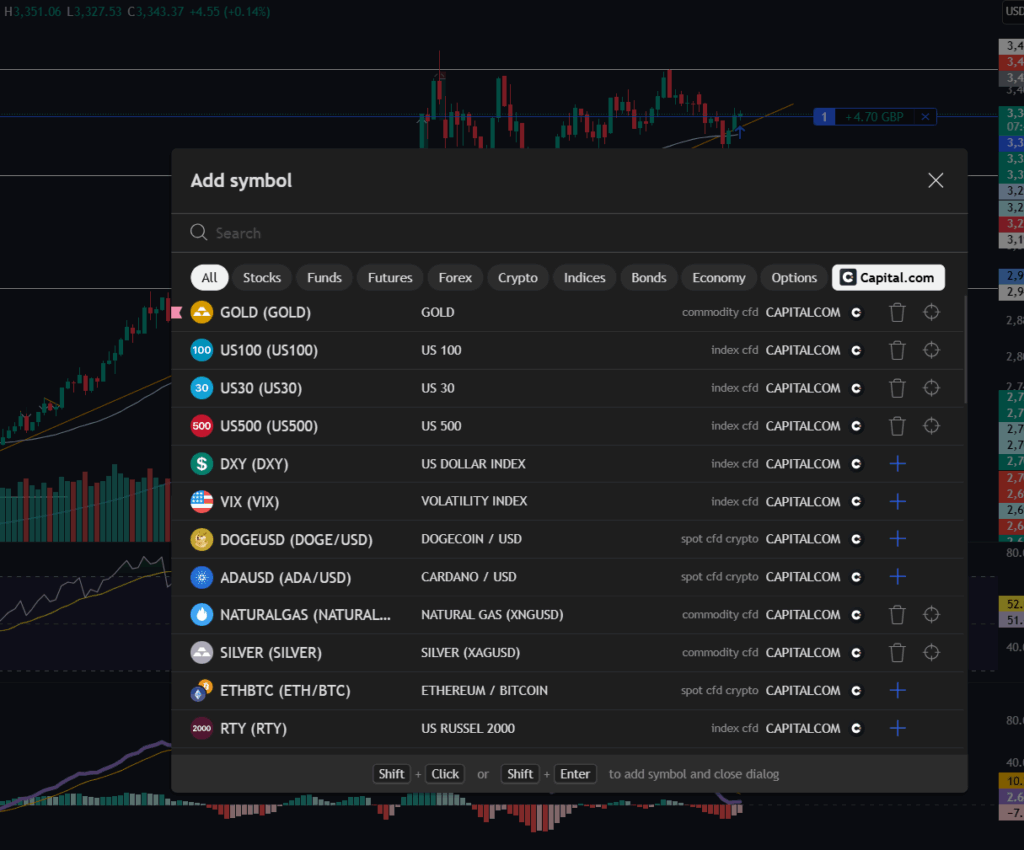
The platform defaults to applying a filter for markets listed on Trading View with your own broker (the broker you have logged into the platform with). You can see above, that for me, it has automatically filtered the markets by the ones I can trade through Capital.com. You can remove this filter to see all markets, however.
You can search for markets in the search box and the search is highly intuitive. Searching for ‘Gold’ will give you all markets with ‘Gold’ in the name description. This may sound obvious but I have experienced frustration with other broker accounts (for example, Pepperstone) where you search for a market using ‘Gold’ and nothing comes up! YOu need to know the specific symbol (XAUUSD I believe but don’t quote me on that!).
To add a market to your own watchlist, click the ‘+’ next to the listed item and it will be added to the bottom of your watchlist.
Sorting items in your watchlist in Trading View
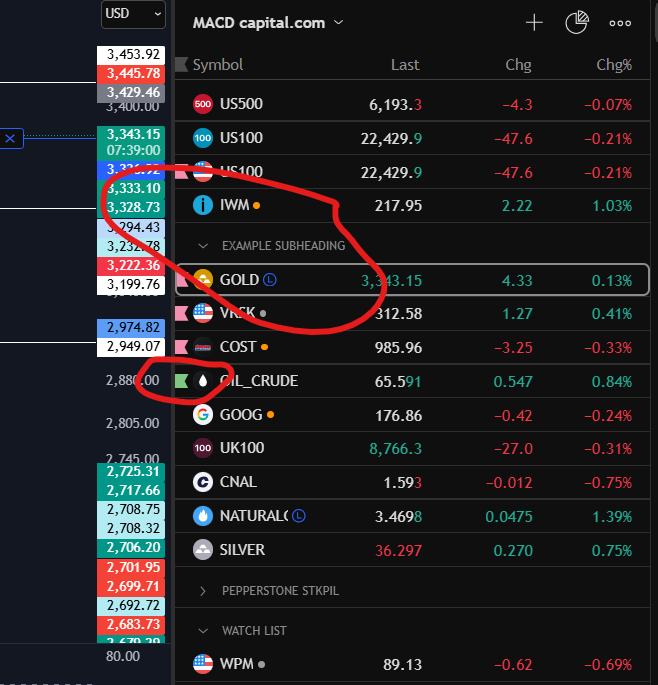
There are some really nice features you can use to sort and organise your own watchlists in trading view (and you can have multiple ones). For example, you can drag the markets into the right position using your mouse. You can right click and add subheadings which can then be collapsed or expanded. You can also add coloured flags to particular markets. Please see below screen shot for examples:
To create more than one watchlist in Trading View
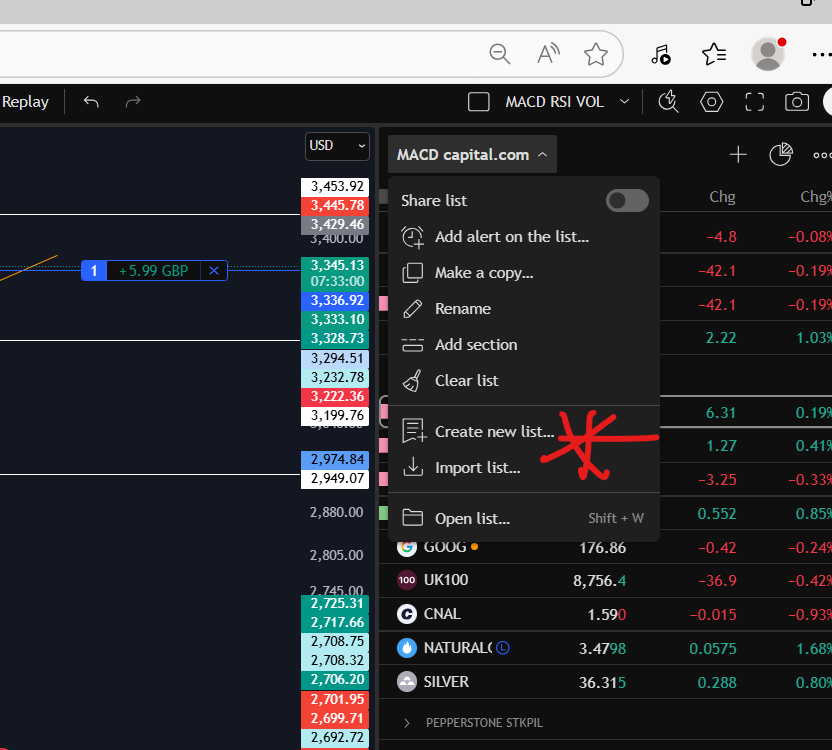
You can create multiple watchlists in Trading View and rename them as you wish. Just go to the drop down menu next to your currently viewed list and you will see a ‘create new list’ option there.
Please also see the video tour on our You Tube channel here which you may also find helpful:
How to sort your watchlists in Trading View
I hope you found this article helpful.
For more great tips and advice on trading the stock market, please visit:
To watch me trade live please visit my patreon page here:
https://www.patreon.com/Traderpro8320
Finally, if you would like to receive a discount on the Trading View charting software I use, please click on the relevant link here:
https://www.tradingview.com/?aff_id=117138
Please note any subscriptions taken via my affiliate link with Trading View may result in me earning a small commission. However, I provide complete transparency on me using Trading View personally – I publish my success on the financial markets via my broker reports and any profits earned were done so by using my own Trading View subscription, so I genuinely do recommend them and have been using the Trading View charts for many years.