This is a super quick article to explain how to switch to dark mode in Trading View charts, to reflect the ‘dark mode’ option. This is useful for people who spend a lot of time on screens – it can be more gentle on the eyes using a dark screen. I hope you find this helpful.
Why switch to dark mode in Trading View?
I asked Google what it had to say about this… I personally find it more comfortable, especially in the evenings, so what I found in the answer Google gave me, was interesting.
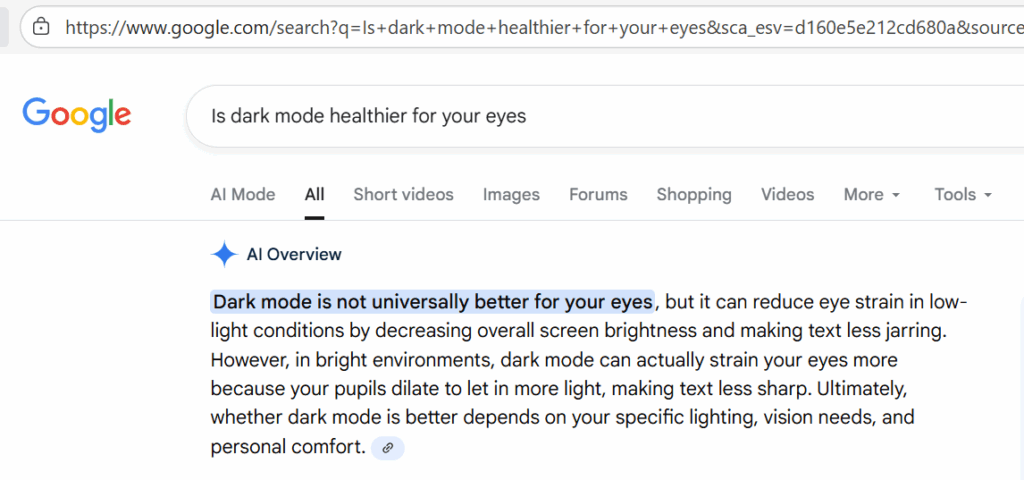
This seems to be a very personal choice, but if you have clicked on this article, the chances are, you have already decided you need dark mode, so let’s get into it!
How to switch…
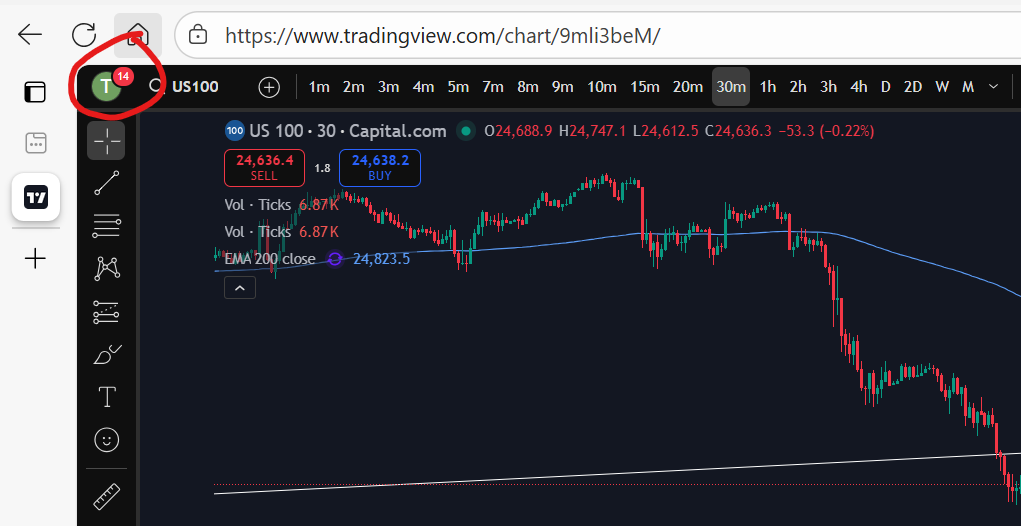
You will find that the default is for a chart to have a white background. To switch to dark mode, first go to your usual chart set up and you will see your profile icon in the top left of the screen:
If you don’t yet have trading view, I highly recommend the software. By signing up to them through my link below, you will receive a discount:
You can see here, my charts display a ‘T’ for Trader Pro – the name on my Trading View subscription. If you click on this, you will get the following display/options:
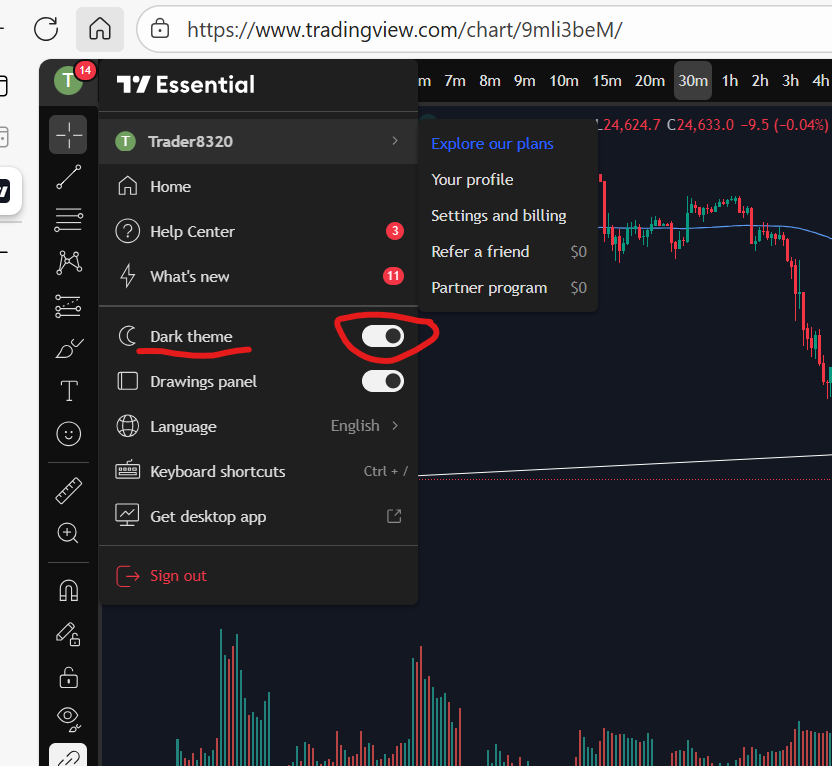
As you can see, there is a toggle switch, which can be toggled on or off allowing you to turn ‘dark mode’ on and off very easily.
I hope you found this article helpful!
Understand my strategy in full: https://www.patreon.com/Traderpro8320
For more great tips on trading the financial markets, please visit my blog:
Discount on Trading View:
https://www.tradingview.com/?aff_id=117138
My performance in the live markets:
https://sophiatrades.co.uk/category/my-performance-statistics
Finally, thank you to my existing members on Patreon, and for your likes, comments and subscribes. Happy trading!
Please note any subscriptions taken via my affiliate link with Trading View may result in me earning a small commission.