Now that i’m a consistently profitable trader (as you can see below, i’m up £500 on the NASDAQ today, currently), I have time to think about very important issues, such as how to change the colour scheme on Trading View, to some girly pink and purple tones 🙂 As you can see below, I have applied these types of colours to my chart. I’m also using dark mode, which I prepared a separate blog about – linked below. Let’s take a look at how this can be achieved…
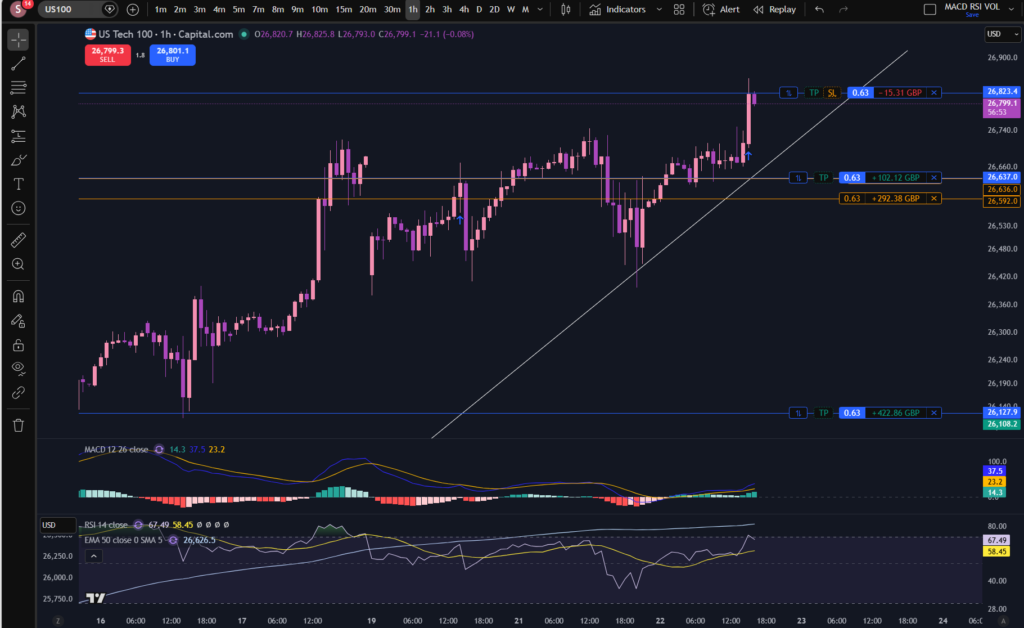
How to change the colour scheme on Trading View – first up, dark mode…
As promised above, here is a separate blog post on how you can change your white background to dark mode. This is one of the steps needed when understanding how to change the colour scheme on Trading View, if you want to achieve the dark background in general shown in my own chart settings. This is great for people who get migraines so may be of benefit to you for that reason. I did change mine for this reason but I also like the way it looks now 🙂
Here’s the blog post on changing to dark mode on Trading View:
How to Switch to Dark Mode in Trading View – Sophia Trades – Learn how to Trade the Stock Market
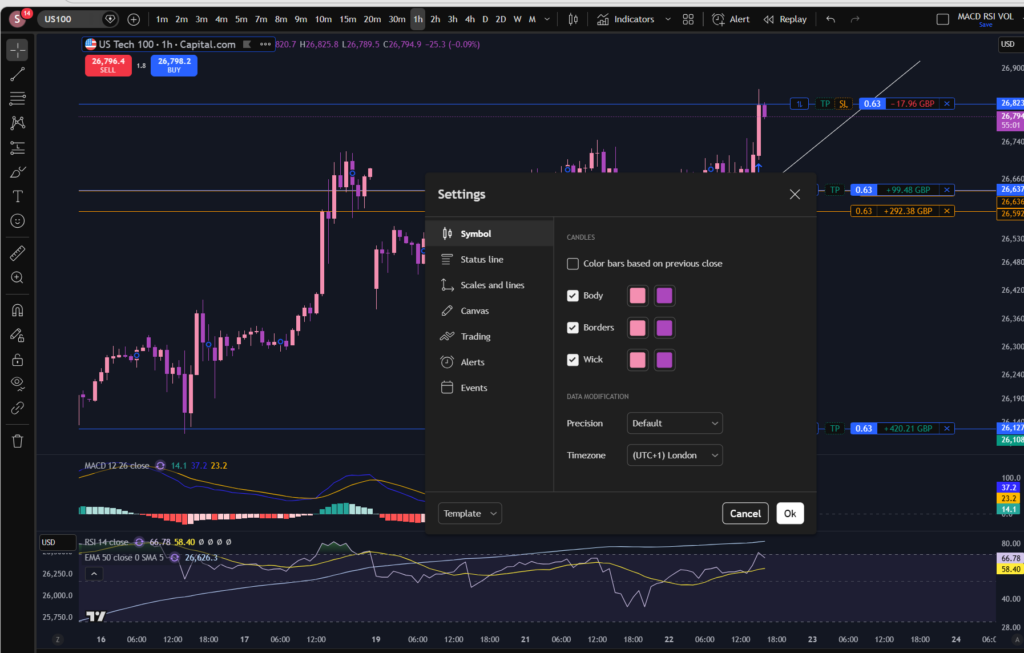
How to change the colour scheme on Trading View – the candles!
To change the colour scheme on Trading View and specifically the candles, you need to right click on the candles themselves, and Trading View will bring up the option table below where you can go in and select different colours. It’s that simple.
How to change the colour of the RSI on Trading View
As with changing the colour of the candles in Trading View, you can also change the colour scheme in Trading View by changing the colours of other indicators, such as the RSI indicator. If you have switched to dark mode, this may be especially important, because the lines on the default settings of particular indicators, will not stand out well, without changing their colour:
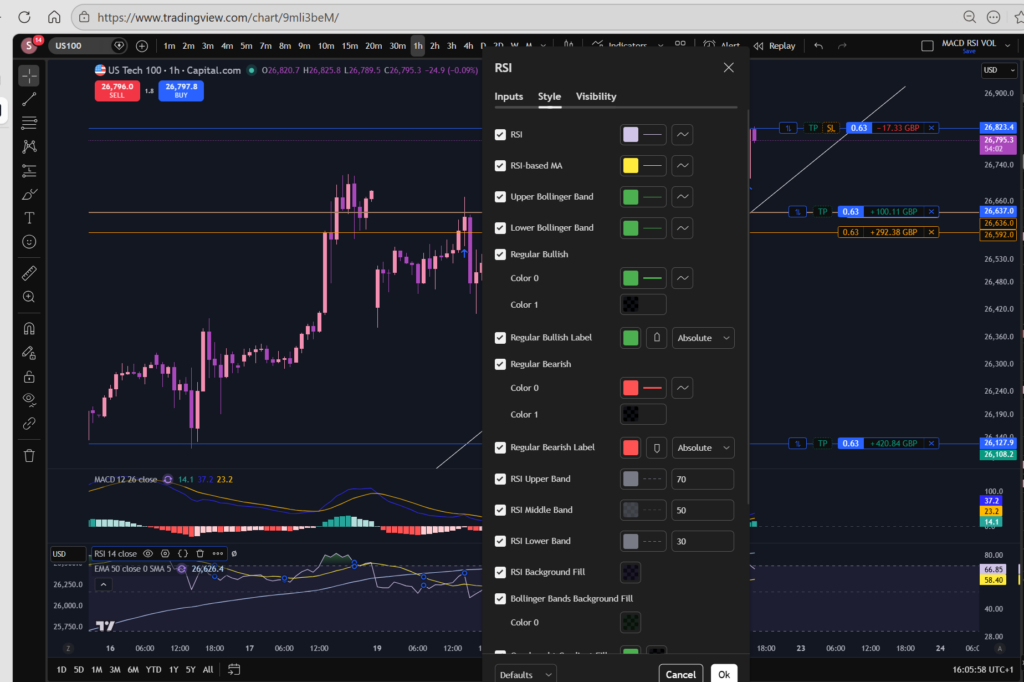
Again, you right click and it brings up the options. You can see i’ve selected a pinky purple colour for the RSI indicator, at the top of this screen shot. In fact, many of the indicators are changed in the same way – by right clicking. Trading View is highly intuitive in this way which is what I love about it.
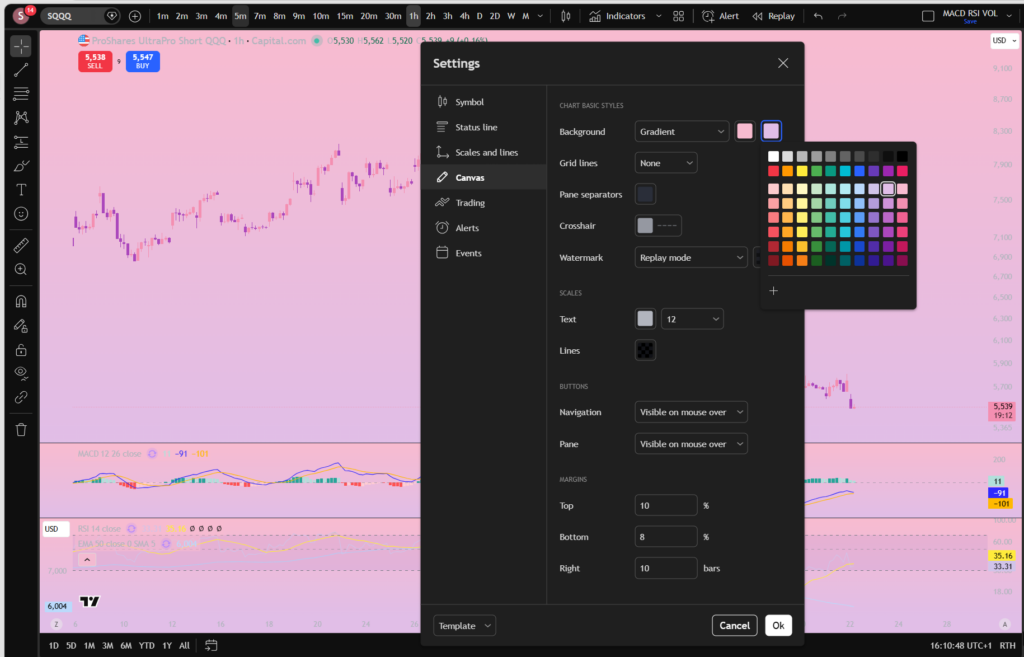
What about the background? Can you change to a completely different colour?
Again, right click the ‘background’ and go to settings. You will find background listed at the top – I have now selected a gradient finish in pink and mauve.
So there you have it! You can completely transform the Trading View platform to suit you own trading style.
I hope you found this article helpful!
Disclaimer!
Nothing on this blog should be taken as financial advice or encouragement for you to enter a trade. You are expected to speak to a financial adviser or carry out your own due diligence before entering any positions. Everything on this blog is made for educational purposes and to equip you with the knowledge you need to be able to make your own financial decisions.
For more great tips and advice on trading the stock market, please visit:
https://www.sophiatrades.co.uk
To watch me trade live please visit my patreon page here:
https://www.patreon.com/sophiatrades
Finally, if you would like to receive a discount on the Trading View charting software I use, please click on the relevant link here:
https://www.tradingview.com/?aff_id=117138
Please note any subscriptions taken via my affiliate link with Trading View may result in me earning a small commission. However, I provide complete transparency on me using Trading View personally – I publish my success on the financial markets via my broker reports and any profits earned were done so by using my own Trading View subscription, so I genuinely do recommend them and have been using the Trading View charts for many years.